Knowledge Base
Blocking users with specific IP addresses from accessing your site using the .htaccess editor
Block users from specific IP addresses or a range of IP addresses from accessing your site
- Log in to your account Hosting Summary.

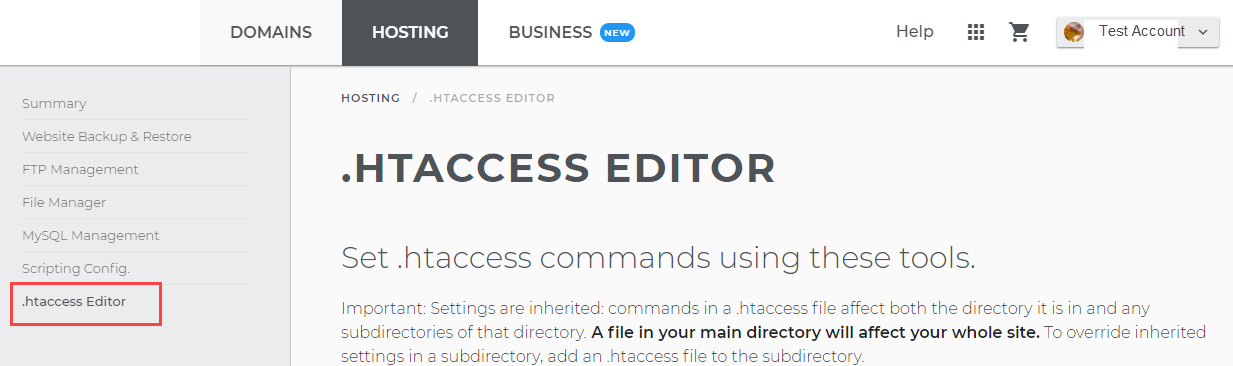
- On the left pane, click .htaccess Editor.
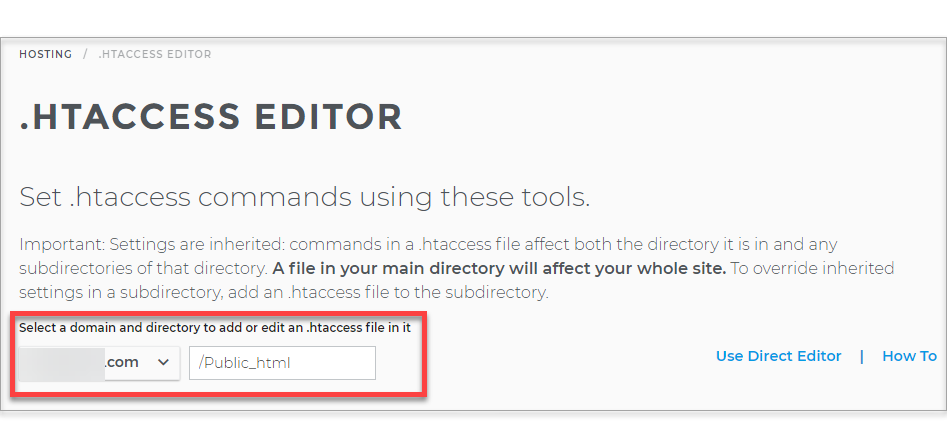
- Select a domain and directory to add or edit the .htaccess file in it.
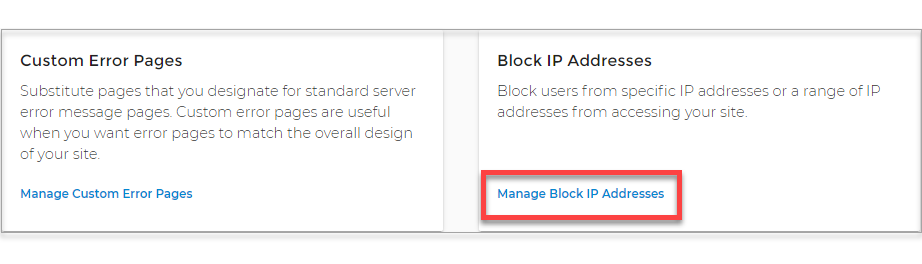
- Click Manage Block IP Addresses.
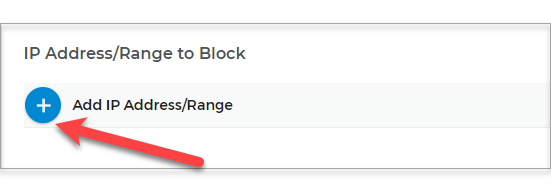
- Click the plus sign to Add IP Address/Range.
- Enter the IP address in the box.
- Click the Block button.
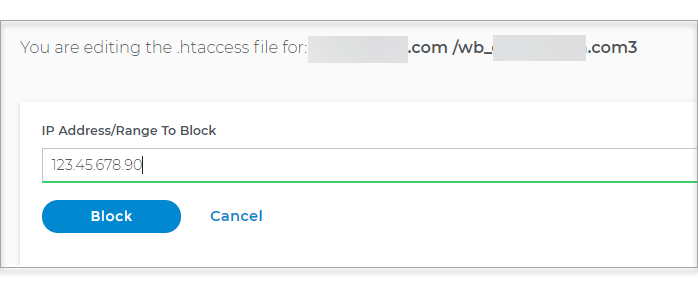
To block an IP range, enter the first IP address in the range followed by a forward slash and a Classless inter-domain routing (CIDR) suffix. E.g., 123.45.67.0/30
Be careful of performing range blocks because you may end up blocking people who are not the problem.
Important: All subdirectories of the selected directory will inherit the settings for the directory unless you apply different settings to specific subdirectories.