Knowledge Base
Business Summary Page
The Business Summary page is where you can view and manage your business tools. From here, you can:
- Tell us about your business so we can set up your business tools
- Set up your Google My Business account for your business to get found on Google
- Create a professional logo
- Get a dedicated business phone number
Getting Started
Help us set up your business tools by telling us about your business.
- Log in to your Domains Dashboard.
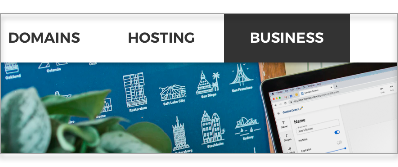
- Click the Business tab at the top corner of the page.
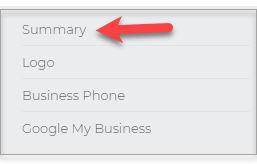
- Select the Summary option on the left sidebar.
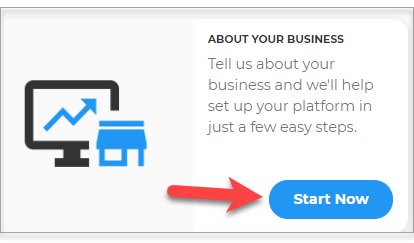
- Click on the Start Now button below the About Your Business description.
- Enter your business name, industry, and type. Click Next.
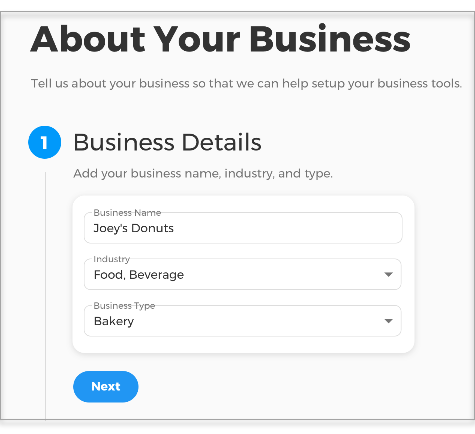
- Add your business contact details and social media accounts. Click Next.
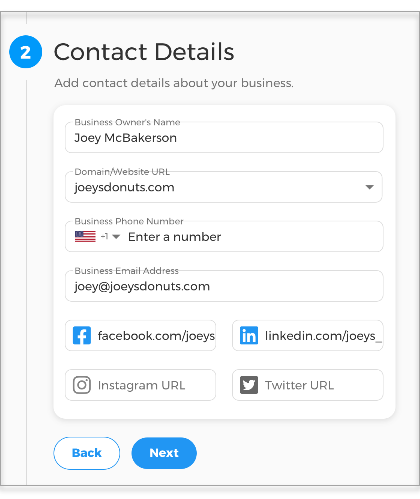
- Add your business location, if applicable. Click Next.
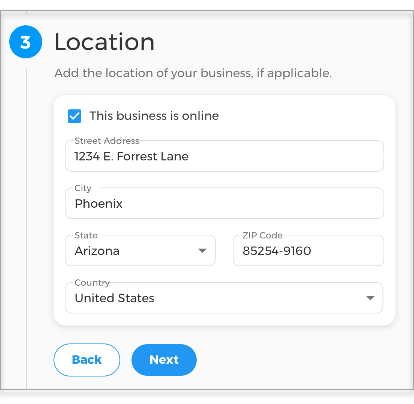
- Add a logo to represent your business or brand.
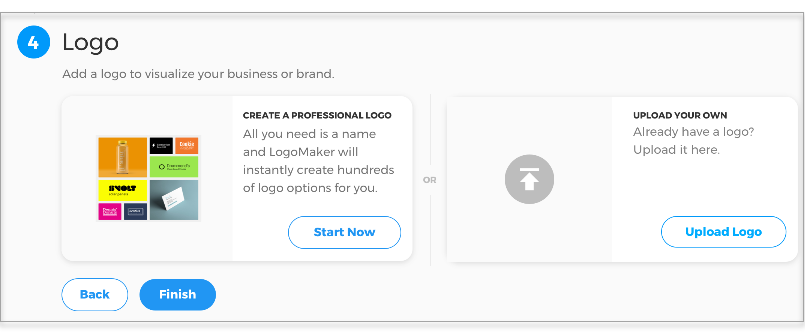
- Click on Finish.
Once you finish adding your business information, your Business Summary appears. Showing the following sections:
Business Website ↴
About Your Business ↴
Logo ↴
Google My Business ↴
Get a Business Phone Number ↴
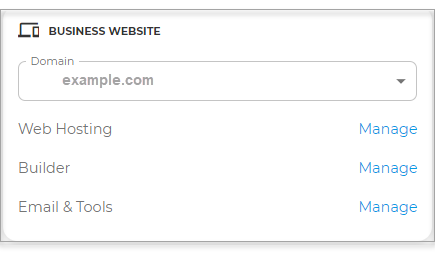
Business Website
- Indicates your hosting plan
- Links to set up your Builder and SEO Tools
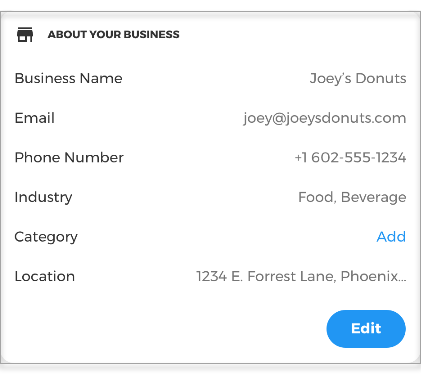
About Your Business
It shows your business name, email, phone number, industry, category, and business location. Click on the Edit button to modify your business information.
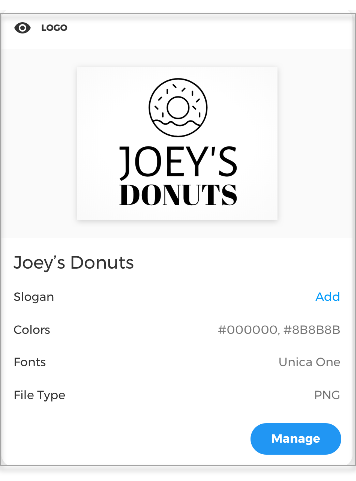
Logo
This section shows your uploaded business logo and the logo design information, such as the color, font, and file type. You can also add a slogan by clicking on the add link.
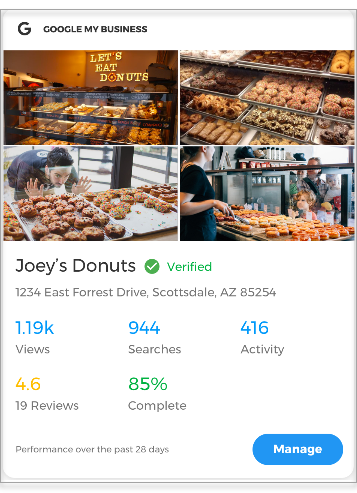
Google My Business
View your website's online presence performance, verify your business, and edit your business information.
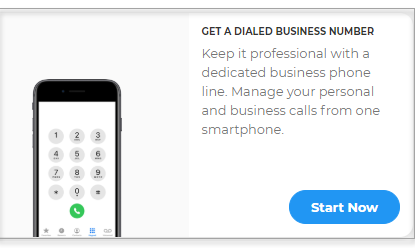
Get a Dialed Business Phone Number
Protect your personal phone number on the web from spam by getting a second business number right on your mobile phone. Click on the Start Now button.