Knowledge Base
Disabling Multi-Factor Authentication for Microsoft 365
We no longer offer Microsoft Office 365 products at this time. If you have already purchased Microsoft Office 365, you may continue to manage your subscription through the Account Manager. If you are looking for a professional email solution, Google Workspace is an excellent alternative for a professional email and provides a full suite of productivity and communication tools.
MFA or Multi-Factor Authentication is automatically enabled for recent sign-ups on customers as part of their Security Defaults. Follow the steps provided to disable MFA on your Microsoft 365 account.
This is intended for users with permission to manage their accounts. You may need to contact your administrator if you get an error message on logging into Microsoft Admin Center.
Disabling MFA
- Go to Microsoft 365 Admin Center. There are two options on how to get into Microsoft Admin Center:
- Log in directly to admin.microsoft.com.
- Or, if you are signed in already, select the App Launcher and choose Admin.
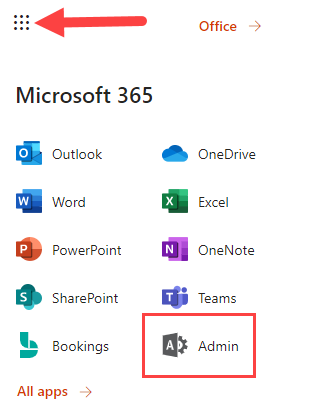
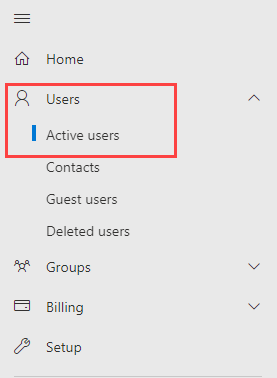
- In the left navigation panel, select Users and then Active Users.
- Please select Dashboard view in the upper right corner if you see a different Dashboard Style or interface. It will change the dashboard view to its default view.
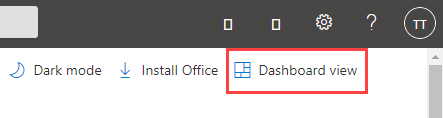
- Please select Dashboard view in the upper right corner if you see a different Dashboard Style or interface. It will change the dashboard view to its default view.
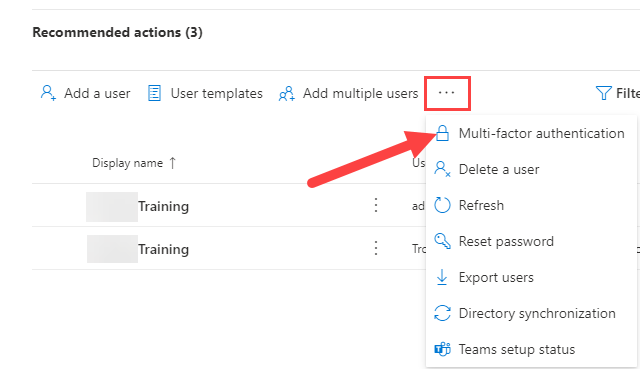
- Inside your Active users' page, click the three-dotted option and select Multi-factor authentication.
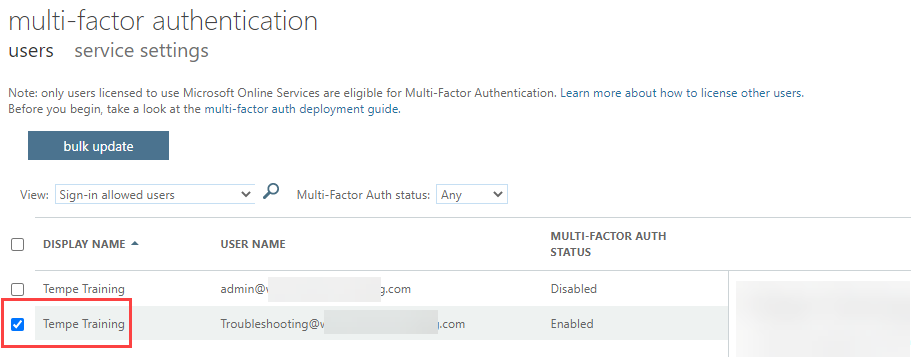
- Select the user by clicking on the Username.
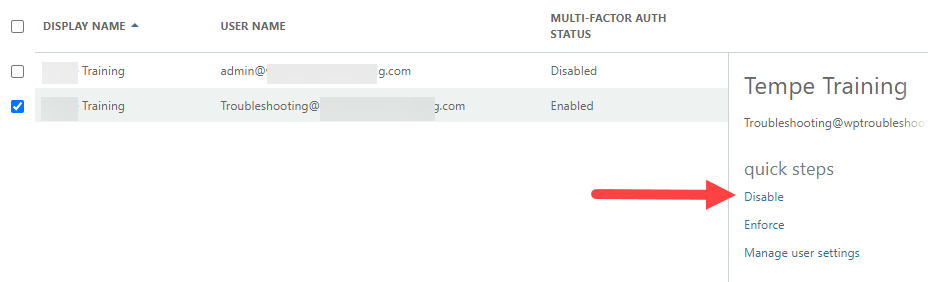
- Under quick steps, select Disable.
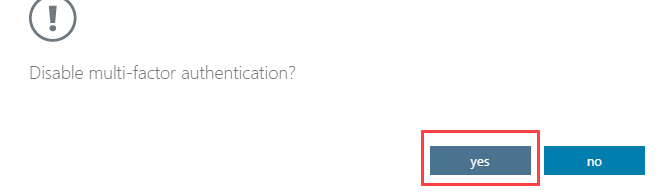
- Confirm the changes by clicking on Yes.
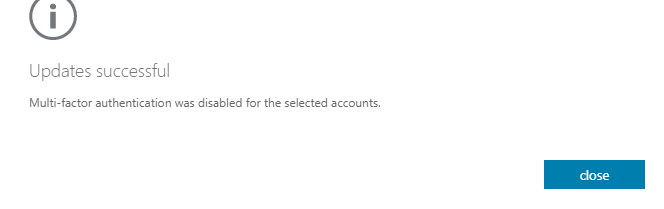
- A confirmation screen will show up on their screen.
- The multi-factor authentication screen will also show you a quick summary of the MFA Statuses.
