Knowledge Base
Domain Management: How To Change Contact Info For Multiple Domains
How To Change Contact Info For Multiple Domains
- Log in to your Domains Dashboard.
- On the dashboard, select the domain you are working on.
There are two views in the Domains dashboard - the Card and List views. Click on the view icons to switch to your preferred view.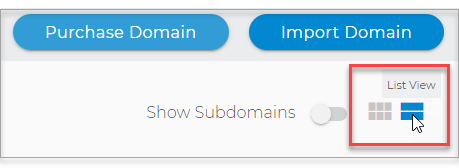
- Choose the domain you wish to modify.
In the Card view, click the domain's Manage button.
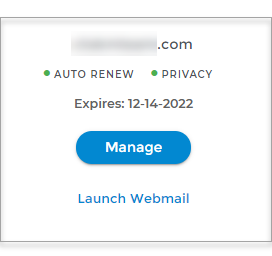
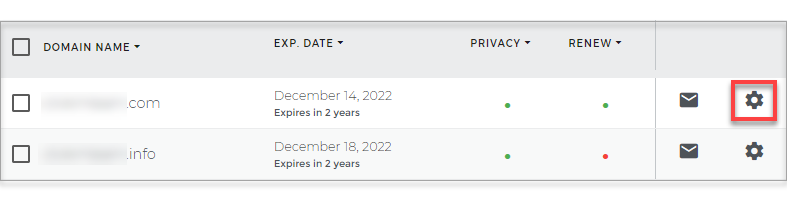
In List view, click the domain or its gear icon on the right-hand side.
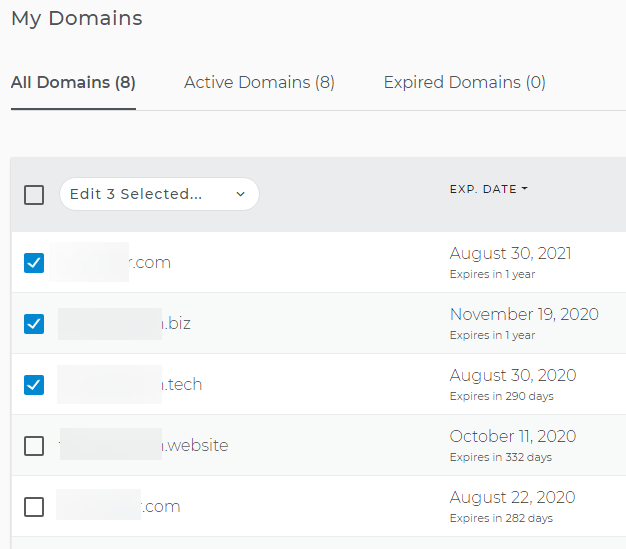
- Select the Domain(s) you want to edit by checking the box.
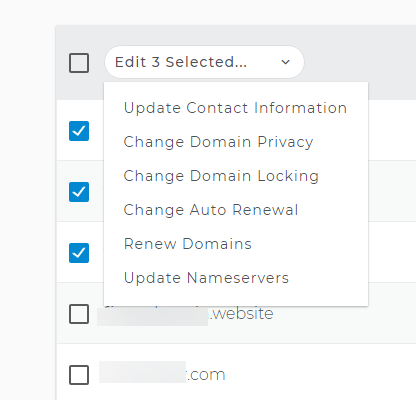
- Click the dropdown arrow and click on Update Contact Information for the selected domains.
- Make your changes to the selected contact types and click the Update button.
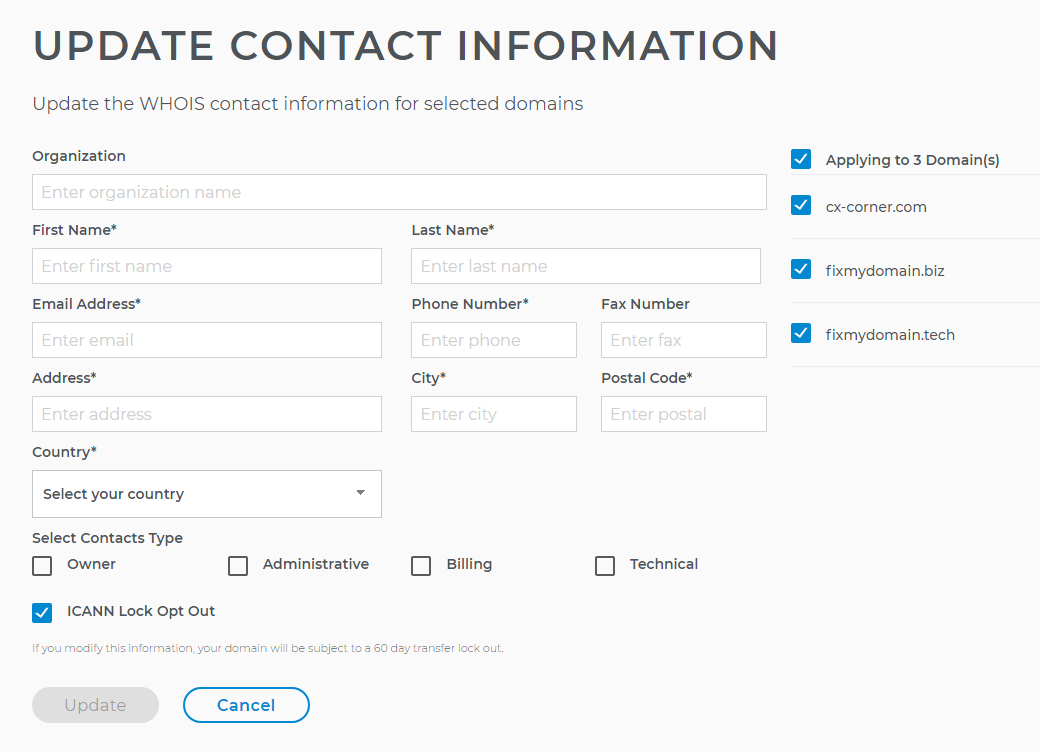
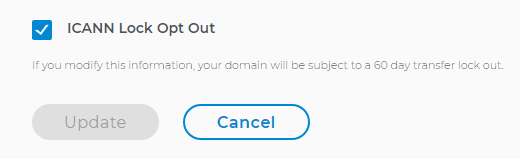
- Revising any of this information will enable the ICANN Lock Out. Be sure to check the Opt Out box if you are in the process of transferring these domains.