Knowledge Base
Domain Security: How To Enable Domain Privacy
Domain Security: How To Purchase Domain Privacy
Before enabling Domain Privacy in your account, you need to purchase it. By following these steps, your goal can be achieved.-
Log in to your Domains Dashboard.
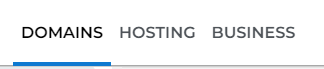
- On the dashboard, select the domain name you wish to modify.
There are two views in the Domains dashboard - the Card and List views. Click on the view icons to switch to your preferred view.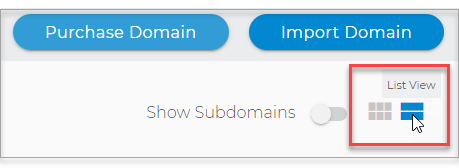
- Choose the domain you are working on.
In the Card view, click the domain's Manage button.
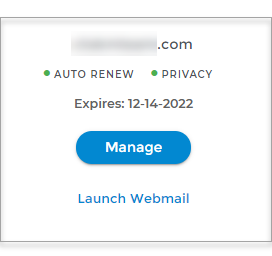
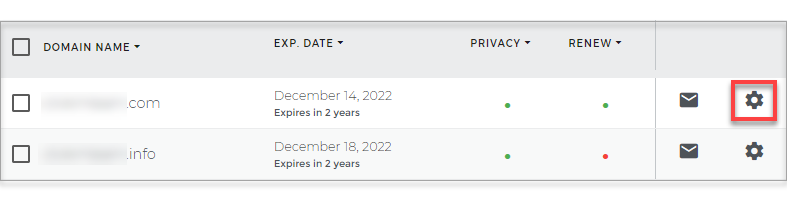
In List view, click the domain or its gear icon on the right-hand side.
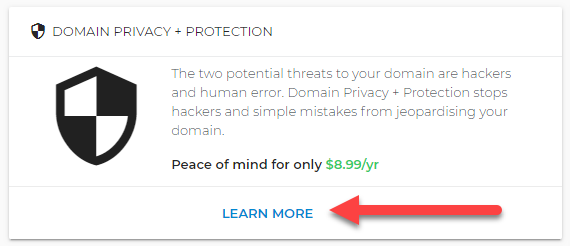
- Under Domain Privacy + Protection, click on Learn More.
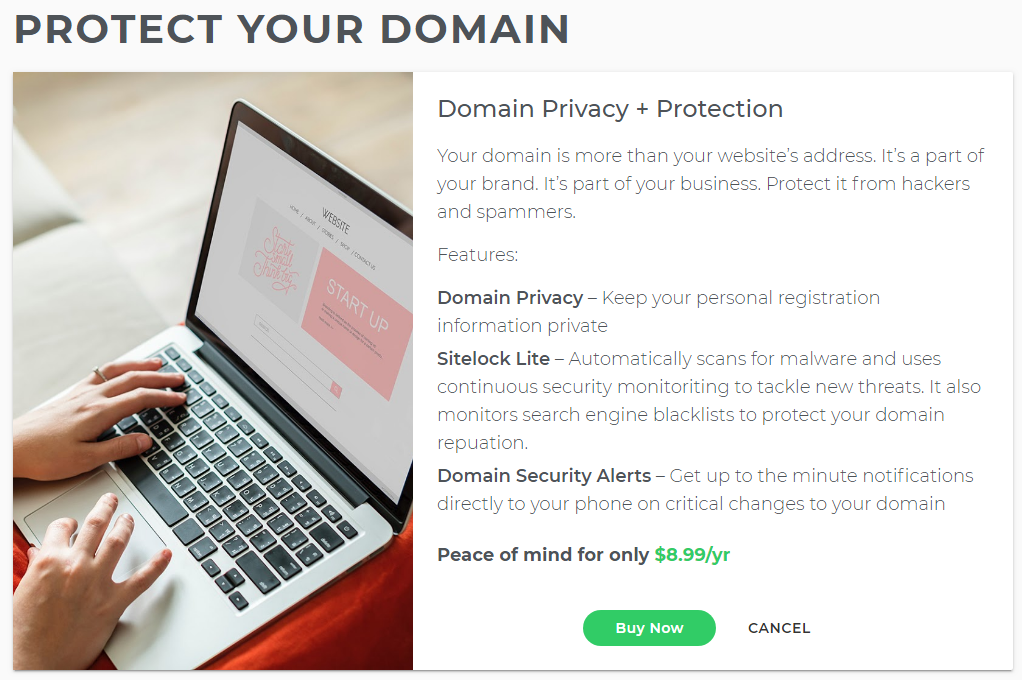
- Learn about Domain Privacy + Protection, click on Buy Now.
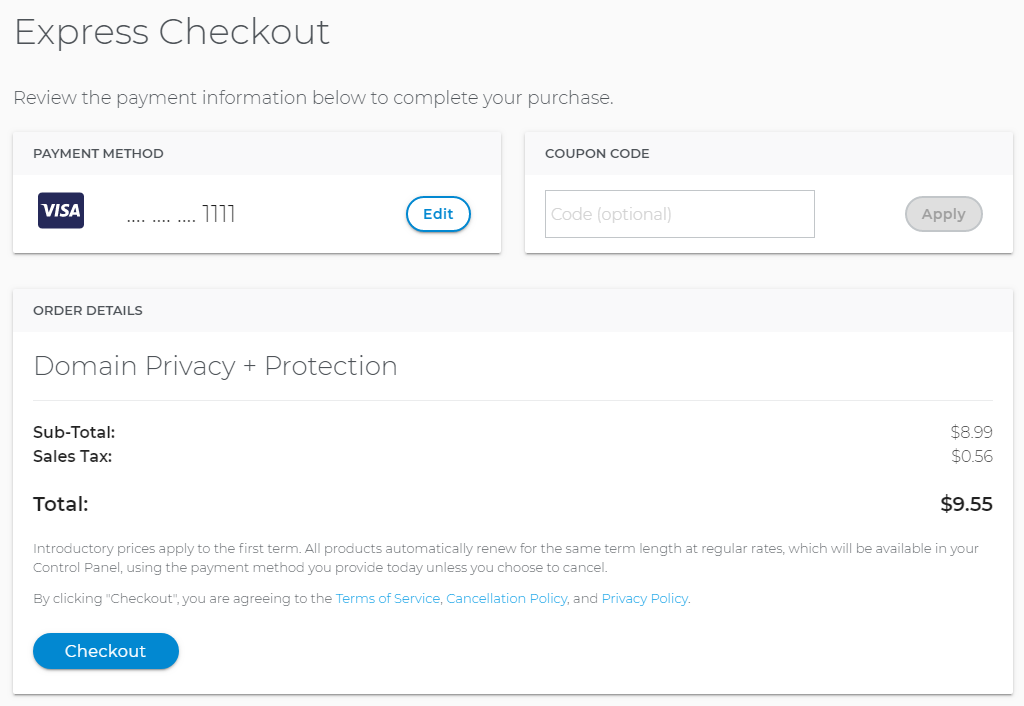
- Use Express Checkout to purchase Domain Privacy + Protection. Click on Check Out to purchase.
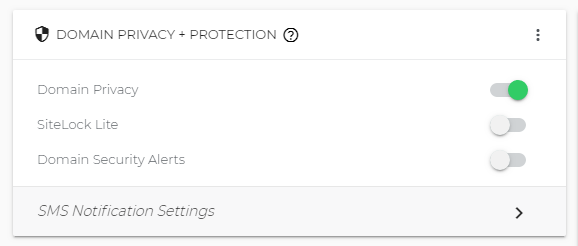
- Domain Privacy + Protection will display on your Summary page
Domain Security: How To Enable Domain Privacy
Once Domain Privacy is purchased, now is the best time to enable it. Follow the steps to be guided accordingly.
-
Log in to your Domains Dashboard.
- On the dashboard, select the domain name you wish to modify.
There are two views in the Domains dashboard - the Card and List views. Click on the view icons to switch to your preferred view. - Choose the domain that you are working on.
In the Card view, click the domain's Manage button.
In List view, click the domain or its gear icon on the right-hand side.
- Under Domain Privacy + Protection, toggle the button to enable it.
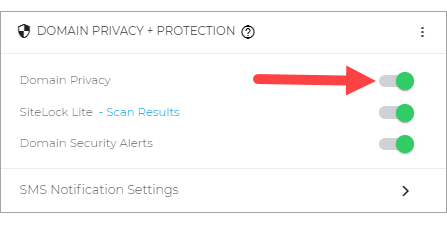
- You will see the notification to the bottom left side of the screen if it's successful.
