Getting Started with WebsiteBuilder
No coding skills or any website development experience, but interested in creating your own website? No problem! This article shows you the following guidelines and how to build your fully functional website in just a few minutes using our WebsiteBuilder:
Overview
Plans and Features
Sign up for Website Builder
How to launch Website Builder
Get started with your website
Overview:
Website Builder is a WYSIWYG (What-You-See-Is-What-You-Get) program used to help customers create responsive website pages. Customers can build a website with customized designs, templates, and other elements. It also allows users to set up websites without the need to write any code. So if you are a type of business person who doesn’t have time to learn website codings, then a website builder is a good choice.
Plans & Features:
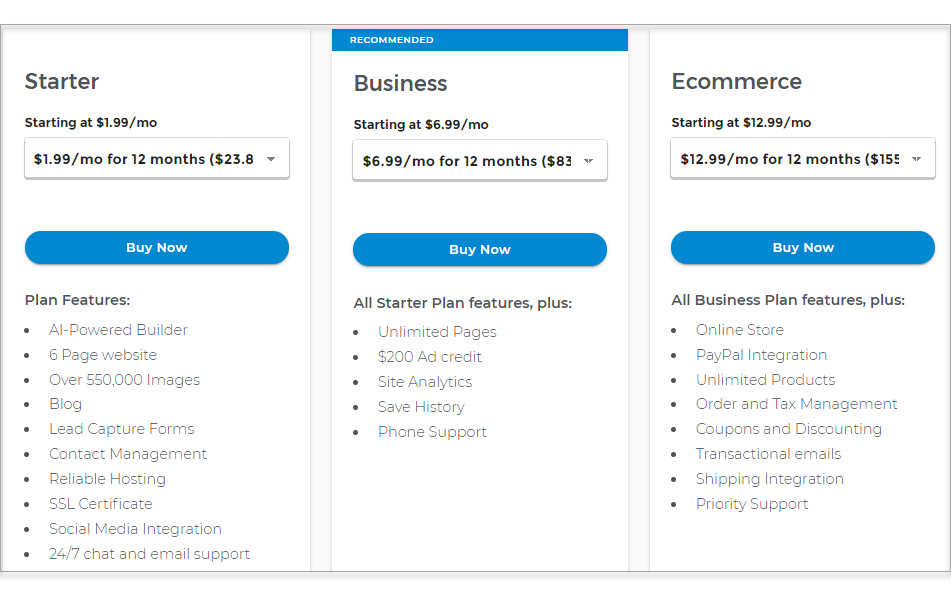
Starter: Customers will have access to an image library that offers 550,000 images. You will also have contact management, SSL certificate, social media integration, lead capture forms, and 24/7 chat and email support. The basic plan starts at $1.99 per month with a 3-year sign-up period.
Business: The Professional package includes everything that the Basic plan does, but it also gives you unlimited pages, the ability to integrate site stats, and Google Analytics. It also offers a $200 advertising credit for Google when you sign up for this package. This plan starts at $6.99 per month with a 3-year sign-up period.
eCommerce: This plan is the one you may need if you are selling products online. It includes all starter and business plan features plus an online store, PayPal and shipping integration, unlimited products, and management of tax and orders. It starts at $12.99 per month with a 3-year sign-up period.
Sign up for WebsiteBuilder
- Log in to your Domains Dashboard.

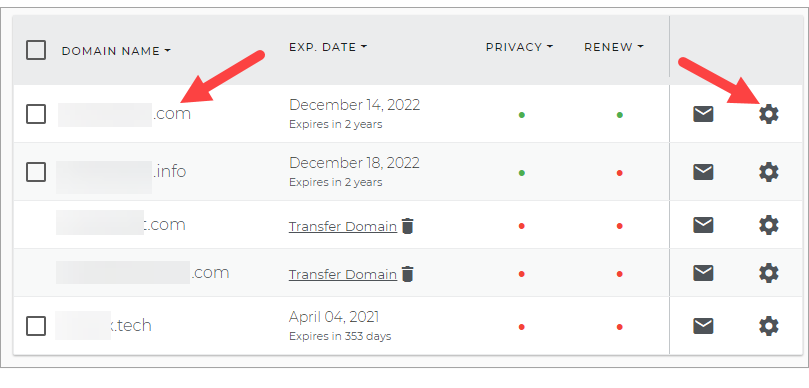
- Click either the domain name or cog icon.
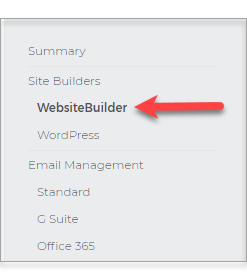
- On the left sidebar, click WebsiteBuilder.
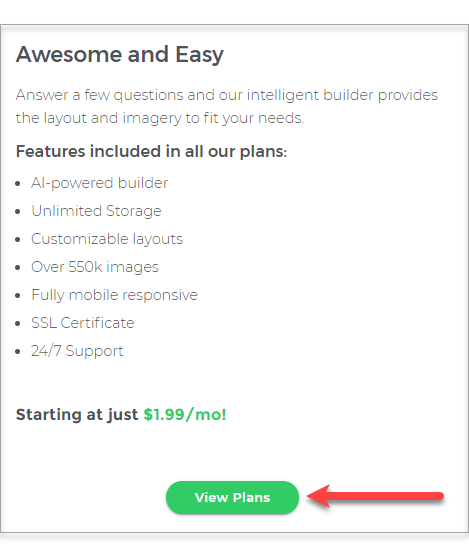
- Scroll down and click the View Plans button.
- Choose the plan that's perfect for you! Click the Buy Now button.
How to launch WebsiteBuilder?
-
Log in to your Domain dashboard.
-
Click on the domain name where you have your WebsiteBuilder configured.
- On the left pane, click on WebsiteBuilder, under Site Builders.
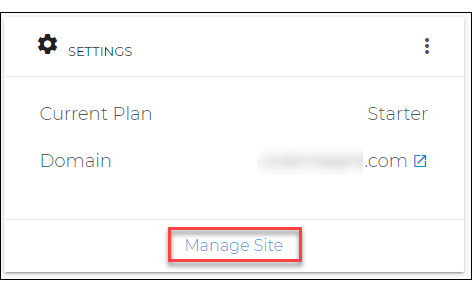
- Under Settings, click Manage Site. This action will open your WebsiteBuilder screen on a new tab.
Get started with your website
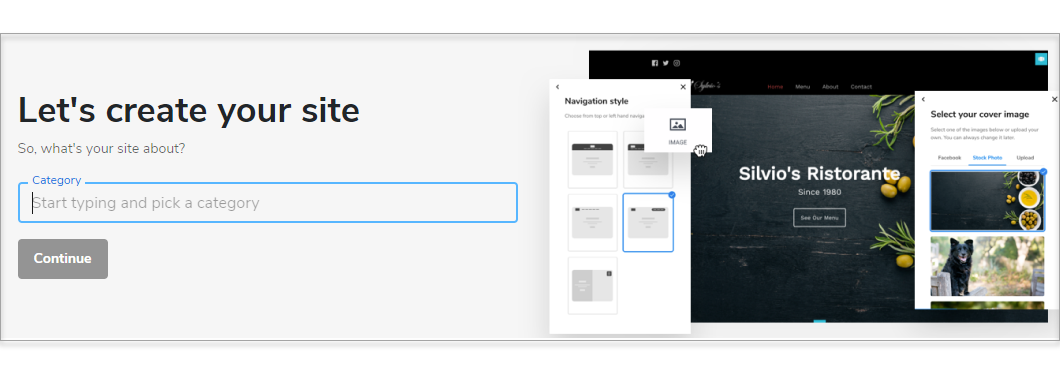
- Start typing and pick a category of your site.
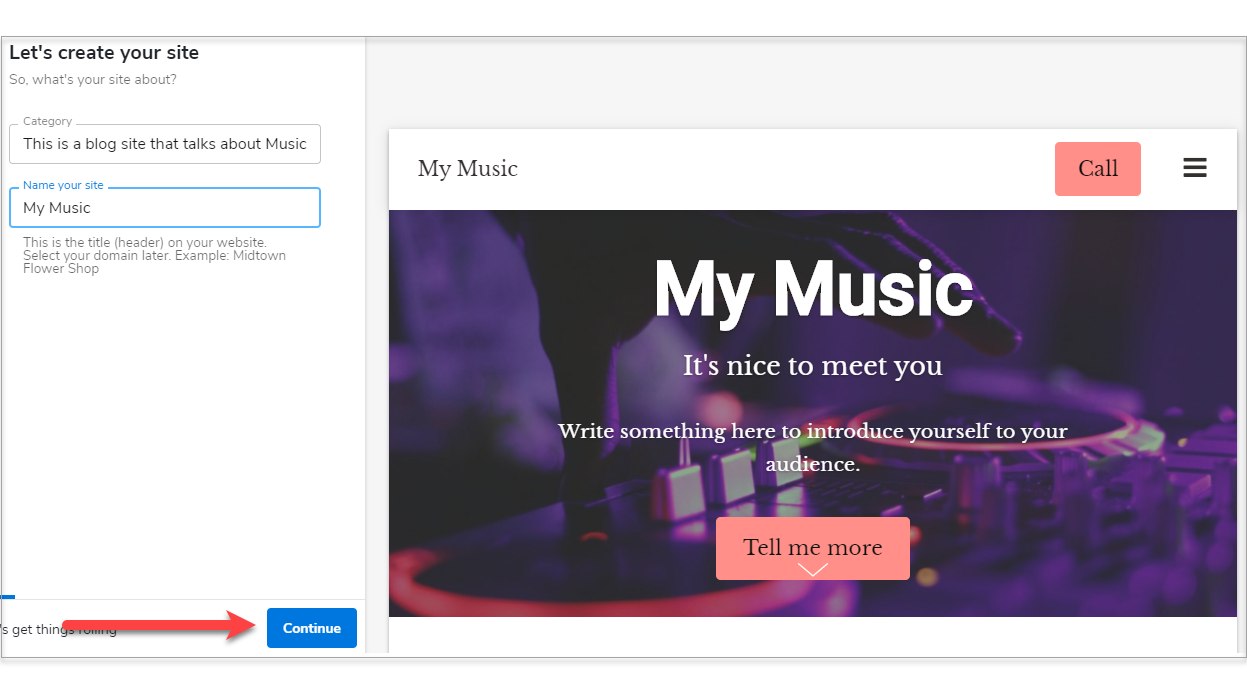
- Name your site and click Continue.
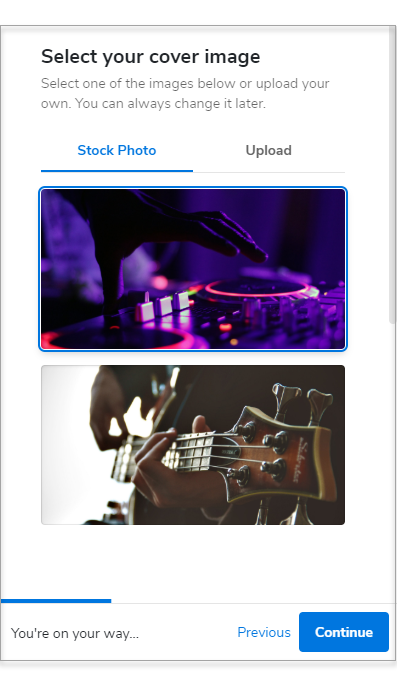
- Select your cover image and click Continue.
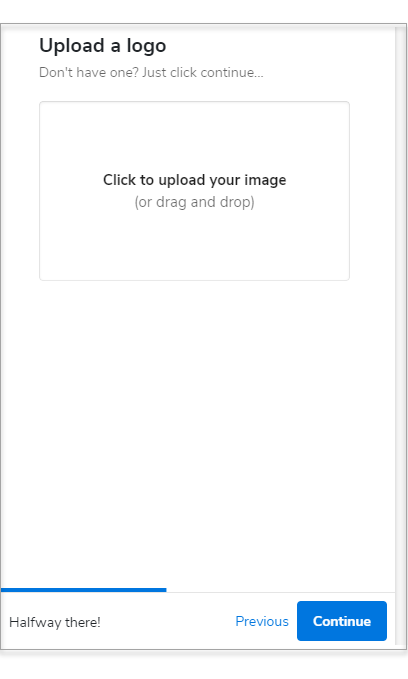
- Upload your site logo. If you don't have one yet, click Continue or visit your Business Dashboard to create through our Logomaker.
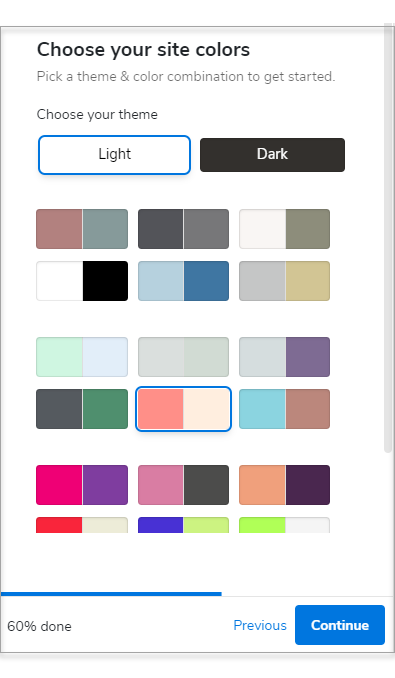
- Pick a theme and color combination for your website.
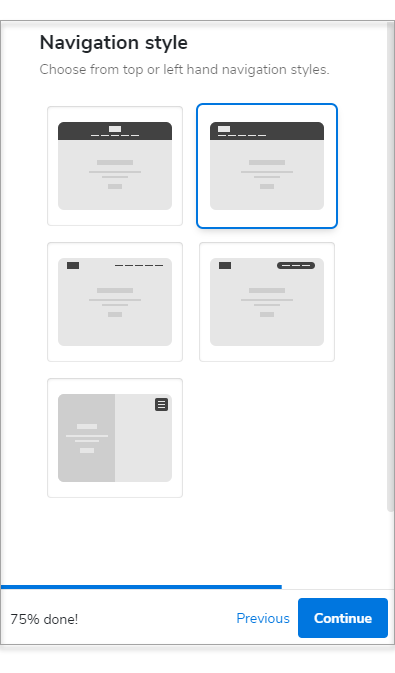
- Choose a Navigation Style.
- Select a Font Pair.
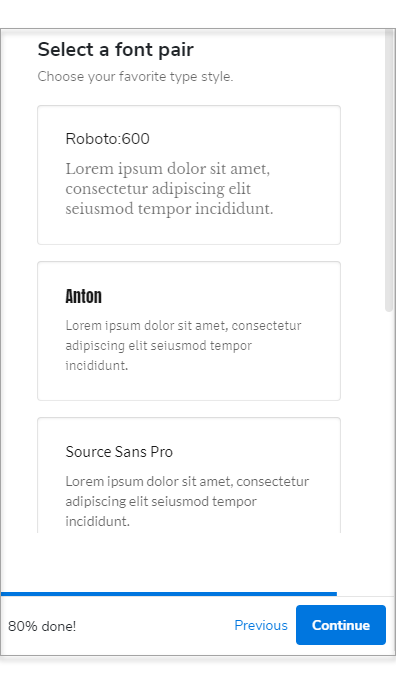
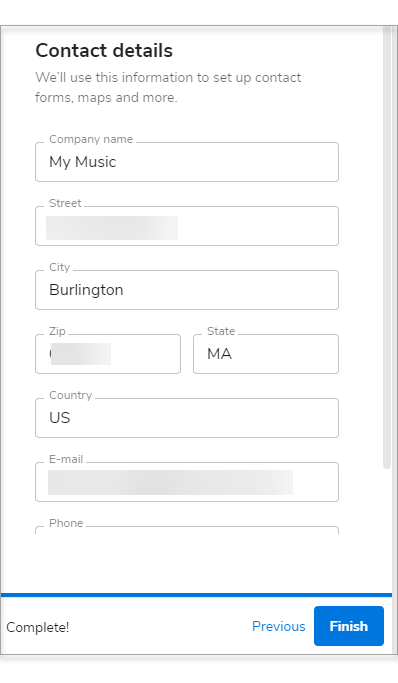
- Type in your contact details. We'll use this information for your contact forms, maps, and more.
- Click Finish.