Knowledge Base
Google My Business
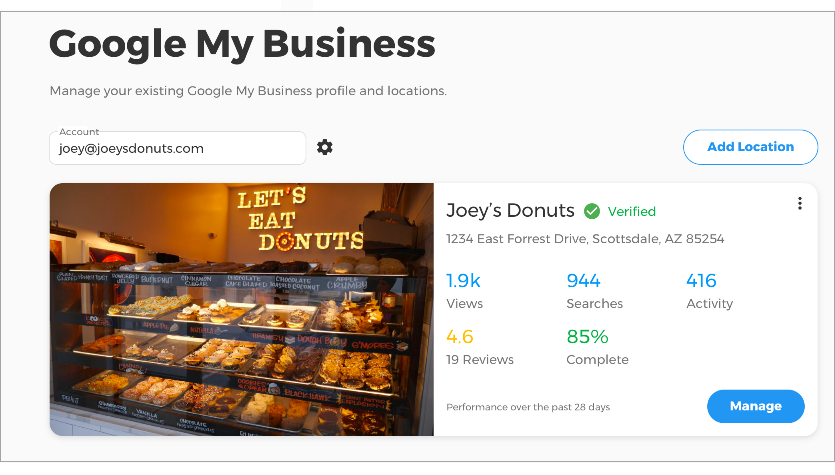
Google My Business gives you more than a business listing. It is a great way to connect with customers as soon as they search on the web. Set up your Google My Business profile through us and engage with your customers on Google for free!
Why is Google My Business Important to my business?
- It allows you to build a great business profile by sharing photos, contact info, reviews, business hours, upcoming events, and more.
- It makes it easy for customers to reach you. You can give them the option to connect via phone, chat, or leave reviews - whatever works best for you!
- With Google My Business, your customers can book appointments easily, so you never miss an opportunity.
- You get a view of how customers engage with your business profile. See how many clicks, calls, bookings, and follows your business already has.
Get Started
- Log in to your Domains Dashboard.
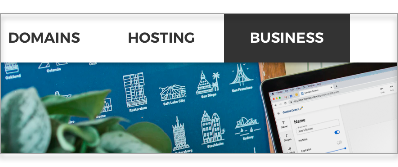
- Click the Business tab at the top corner of the page.
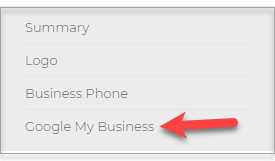
- Select Google My Business on the left sidebar.
- Tick the box for I agree with Google's terms of service.
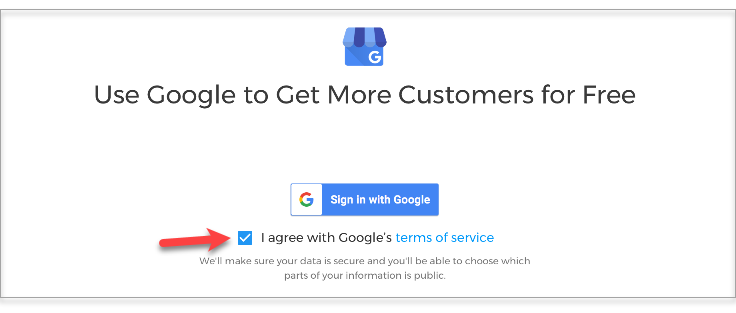
- Click on Sign in with Google.
- Enter your email address or phone number. Then click Next.
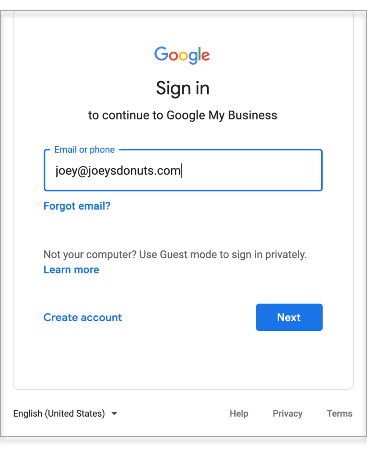
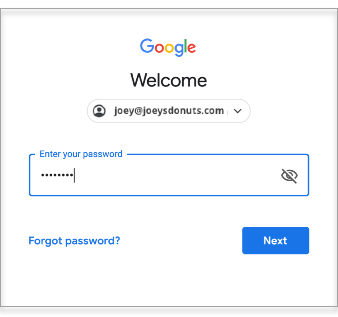
- Type in your email password.
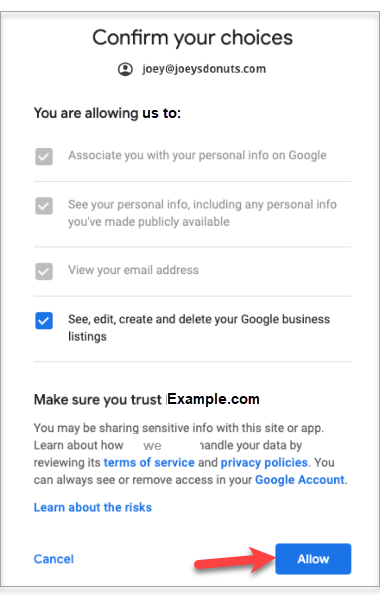
- Confirm your choices and click on Allow.
- To add your business location, click on the Add Location button.
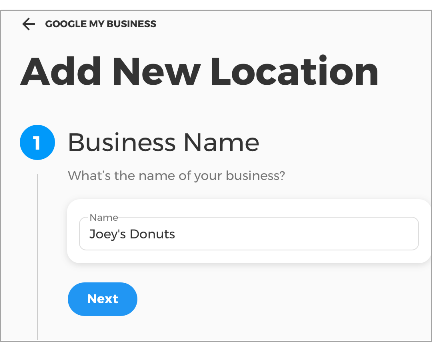
- Enter your business name, then click Next.
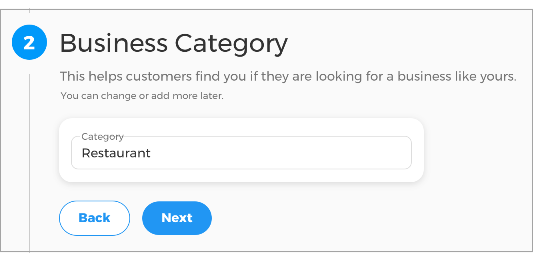
- Select your business category from the drop-down list, then click Next.
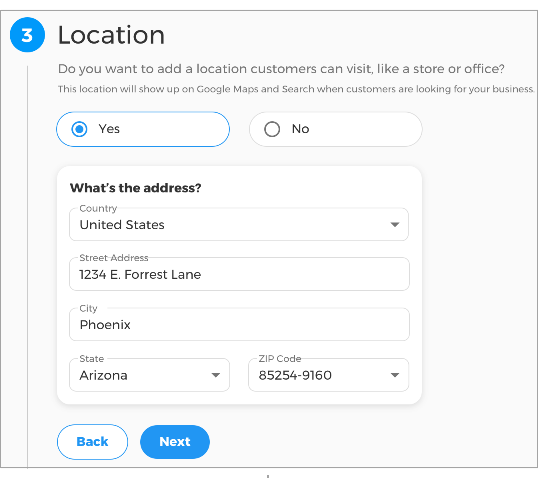
- Enter your physical store or office location that your customers can visit. Click Next.
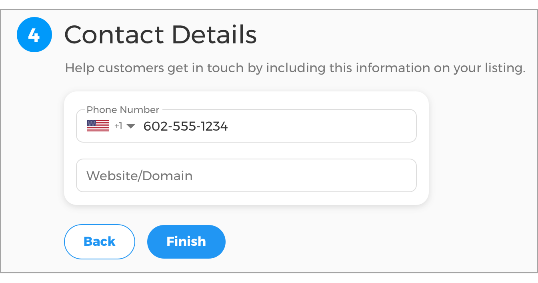
- Provide your contact details, then click Finish.
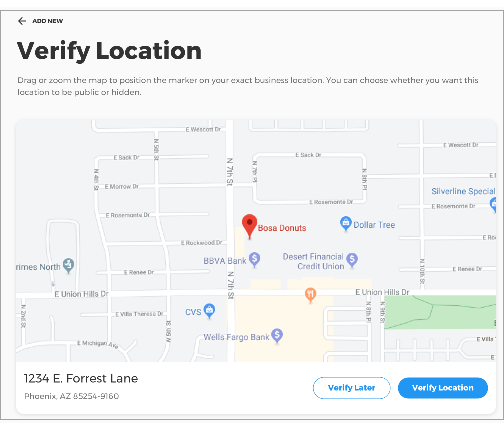
- Verify your location. You can drag or zoom the marker on your exact business location. You can choose whether you want this location to be public or hidden.
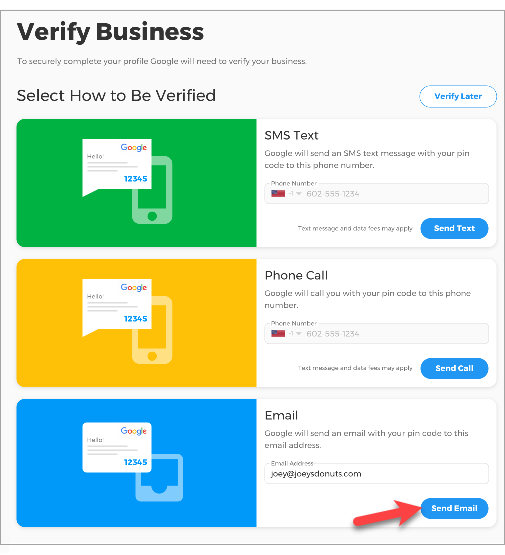
- Choose if you want to be verified through SMS text, phone call, email, or if you want to do it later.
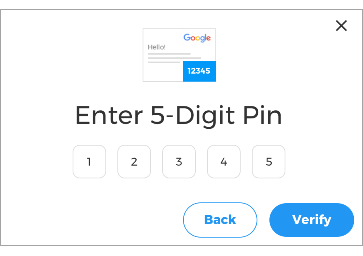
- Enter the 5-digit pin, then click on the Verify button.
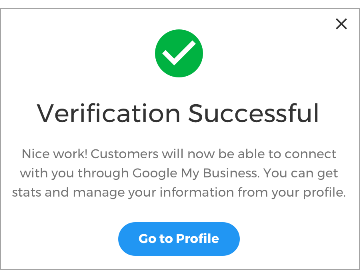
- A pop-up window will appear, confirming that the verification is successful.
-
Click Go to Profile to access your Google My Business account.