Knowledge Base
Categories: SiteLock
How to Enable SMART PATCH in your SiteLock Dashboard
Overview
The product that you just purchased is your SMART/PATCH feature. This scan runs alongside your normal SMART scanner and can patch any vulnerabilities within your files, themes, and plugins, allowing you more time to go in and seamlessly make the needed updates yourself. It is still highly recommended that you are making the needed updates to your website when the newer versions are released.Step 1: Launch your SiteLock Dashboard:
- If you have purchased services directly from SiteLock, you could go to our website and select LOGIN at the top righthand corner or click here. Your username will be the email address that you signed up for our services with. You may need to request a password reset if you are unable to sign in.
- If you purchased our services through one of our hosting partners, you could launch the dashboard by signing into your hosting control panel and following their instructions. You may need to search their knowledge base for instructions on how to do this.
Step 2: Enable SMART/PATCH:
- Once you have logged into your dashboard, you will want to click on the Settings tab on the right.

- You will then want to click on SMART/PATCH Settings.

- By default, SMART/PATCH is set to "Scan automatically but do not patch."
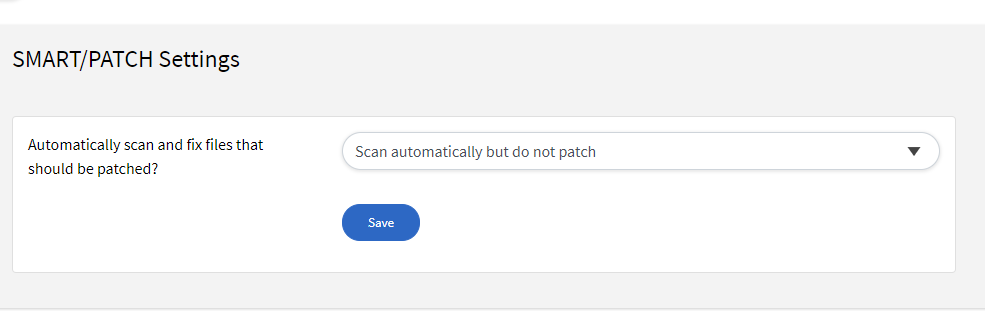
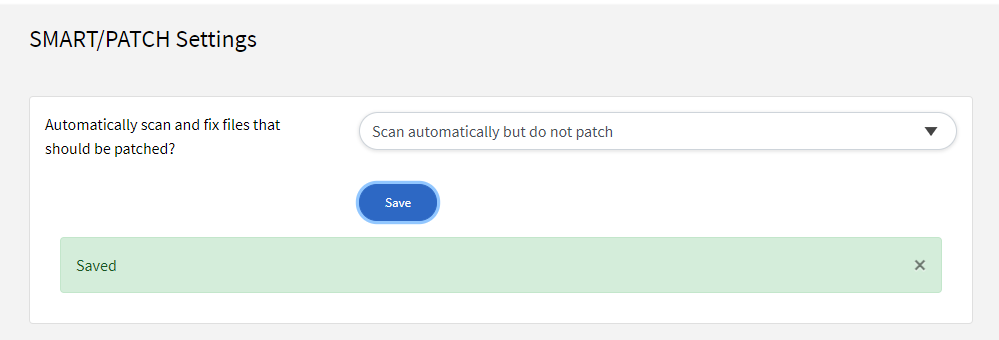
- We recommend switching this to "Scan and patch automatically" and then hit "Save."
If you have questions or require further assistance, please contact us at %%sitelock_support_number%% and select option 2 for support. Our friendly security specialists will be more than happy to assist you.