Knowledge Base
Categories: Design
How to Place Navigation in Different Locations
The instructions found in this article are in WebsiteBuilder Legacy. This will not apply to WebsiteBuilder Express builder.
- Log in to your Domains Dashboard.

- On the dashboard, select the domain you wish to update the A records.
There are two views in the Domains dashboard - the Card and List views. Click on the view icons to switch to your preferred view.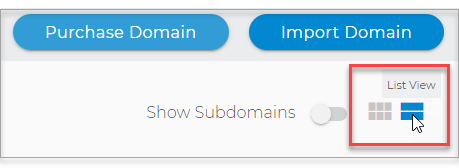
- Choose the domain you wish to modify.
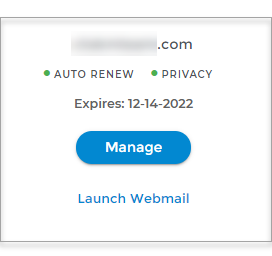
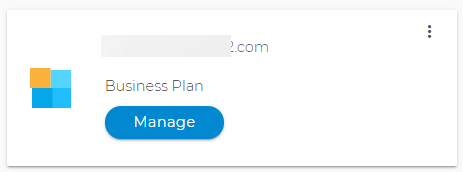
In the Card view, click the domain's Manage button.
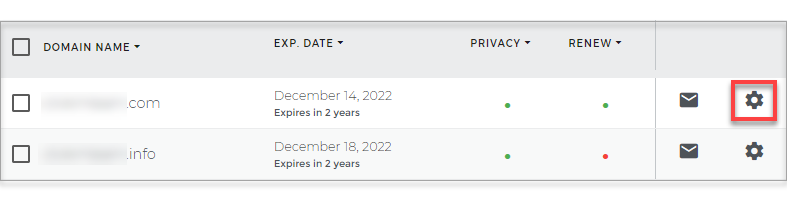
In List view, click the domain or its gear icon on the right-hand side.
- On the left pane, click on WebsiteBuilder, under Site Builders.
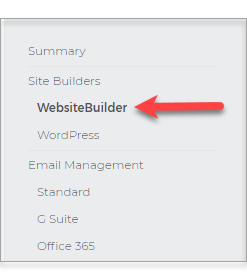
-
Hit Manage to open your WebsiteBuilder Legacy Editor.
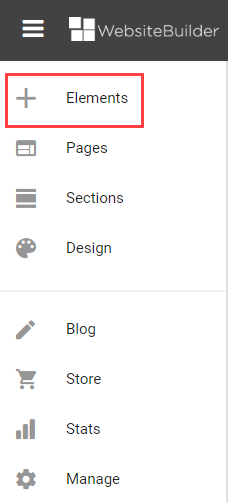
- On the left pane options, look for Elements.
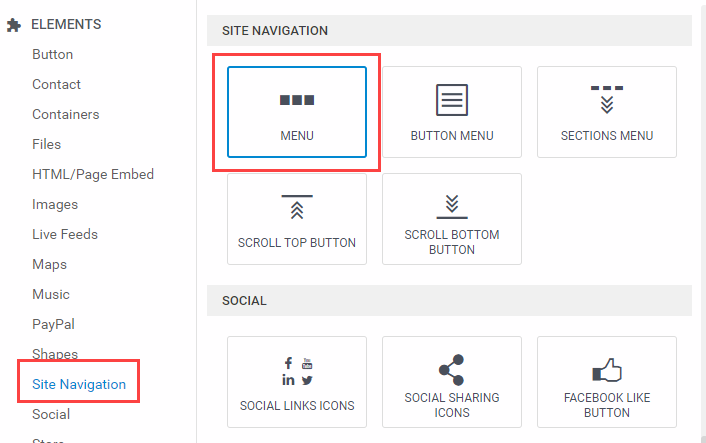
- From the list of Elements, choose Site Navigation.
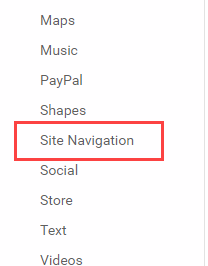
- Inside the Site Navigation Settings, click Menu. Drag this element to the desired location in your editor.
- To change the design of the Navigation menu, click on the navigation menu and select Change Design. There are 20+ designs that you can choose from. The Navigation Menus can be in Horizontal, Vertical, or Grid orientation.

- Horizontal Menu

- Vertical Menu
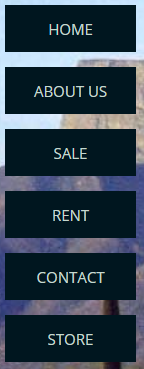
- Grid Menu
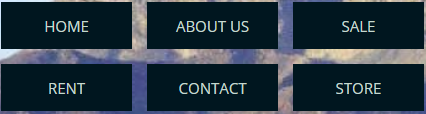
- Horizontal Menu
- To change the design of the Navigation menu, click on the navigation menu and select Change Design. There are 20+ designs that you can choose from. The Navigation Menus can be in Horizontal, Vertical, or Grid orientation.
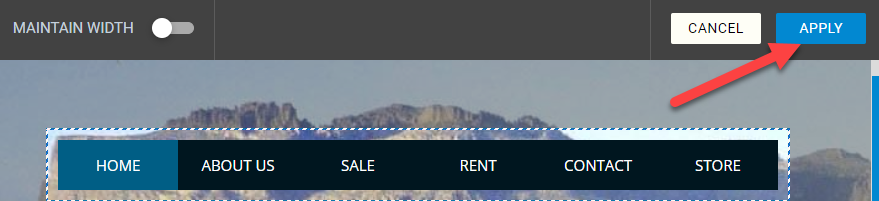
- Always hit the Apply button on the upper-right corner to save the changes.