Knowledge Base
Categories: G_Suite
How to Setup Gmail with Apple Mail
You might want to send and receive mail from other email clients. This article will guide you through setting up your Google Workspace email account with Apple Mail.
Before you begin: Turn on IMAP in the Google Admin console.
To let your Gmail account sync with third-party mail clients, turn on IMAP in the Admin console by following the steps in Turn POP and IMAP on and off for users.
Set up Gmail with Apple Mail
Set up Gmail with the Mail mobile app
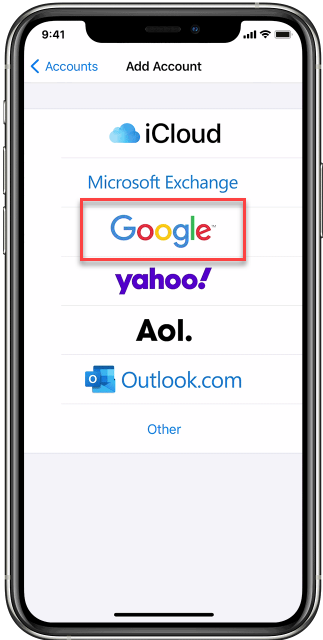
Important: When you’re asked to select your email provider, select the Google option.
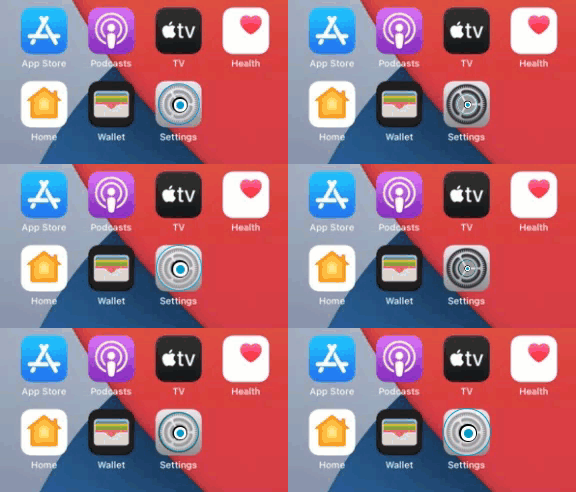
- Go to your phone Settings. It is the gear icon on your phone.
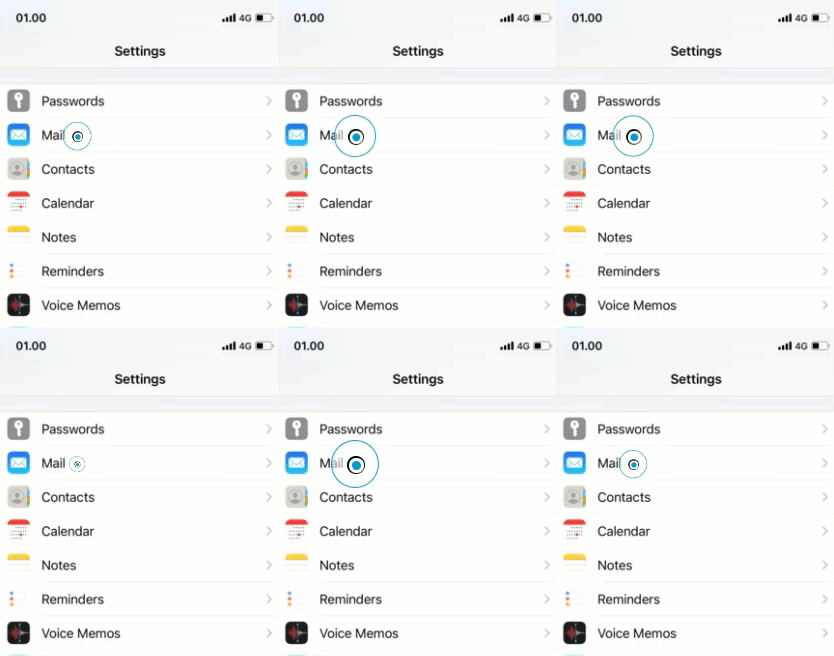
- Swipe down a bit and select Mail.
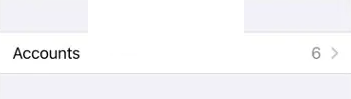
- Scroll to and click on Accounts.
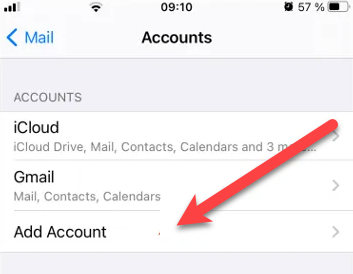
- All the email accounts configured on our Apple device will appear, both active and inactive. If it is the first email account that you configure on your phone, you will see an empty list. Click on Add Account.
- Select Google.
- Enter your email address and password.
- Tap Next and wait for Mail to verify your account.
- Choose information from your email account, like Contacts or Calendars.
- Tap Save.
Set up Gmail with Mail on a Mac
- Open Apple Mail on your computer.
- Click on MailAdd Account.
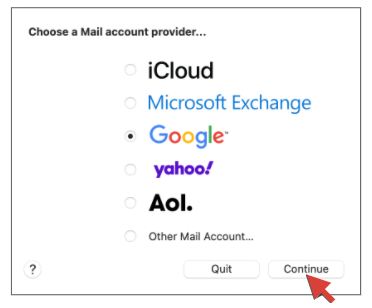
- Select the Google option, then click Continue:
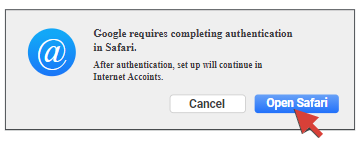
- If prompted, click Open Safari to let Google finish the authentication:
- Enter your Google Workspace Gmail email address in the Google Sign in window, and click Next:
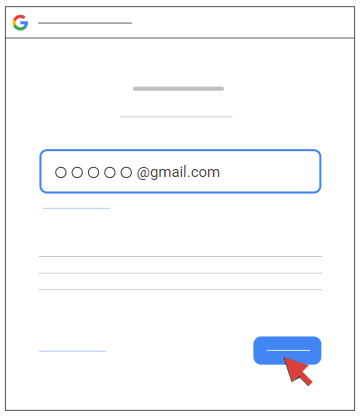
- Enter your password in the Google Welcome window, then click Next. If prompted, select Allow to grant permissions to your account.
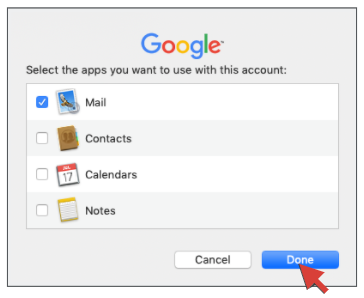
- Check the Mailbox in Select the apps you want to use with this account. Click Done.