New SiteLock Dashboard: How the Trust Seal Works
Contents:
How the Trust Seal Works.
How to install the Trust Seal
Trust Seal FAQs
How the Trust Seal Works
- After installing the Trust Seal on your website, it pulls the data from our scanners running on your website, not through the Firewall.
- If our scanners determine your website is clean, it will display Passed in green along with the date it verified it was clean.
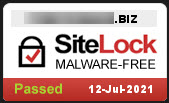
Please note that the date shown will be the last scan that was run and came back clean.
Check your scan frequency settings if it is displaying an older date.
- If our scanners have detected malware or vulnerabilities on your site, the Trust Seal will be removed automatically if not resolved within 72 hours.
- Your website will have the Trust Seal back after you have fixed these issues.
- Clicking on the Trust Seal will bring up a new window, showing the following details:
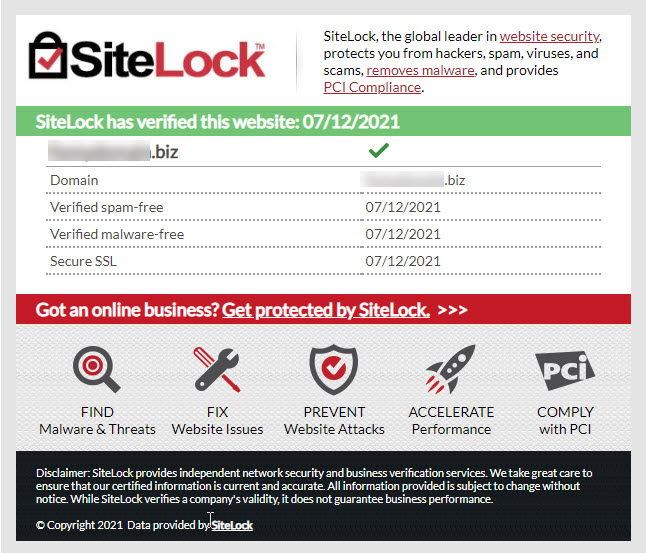
- Company Name - This will display your business’s name.
- Domain -This will display your domain name.
- Phone -This will display whether we have verified your phone number. If it says otherwise, please contact us so we may verify it.
- Address -This will display whether we have verified your address. If it says otherwise, please contact us so we may verify it.
- Verified spam-free -This will display the last date our scanners determined your site to be spam-free.
- Verified malware-free -This will display the last date our scanners determined your site to be malware-free.
- Secure SSL -This will display the last date our scanners detected your SSL.
How To Install the Trust Seal
To install the Trust Seal, please follow the steps below:- Near the top of the main page of your dashboard, click the Shield button.
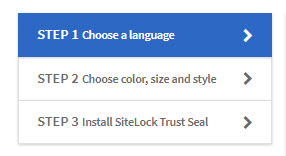
- On the next page, you should see three steps you need to complete. Click on Step 1 to initiate the process.
- Choose your preferred language.
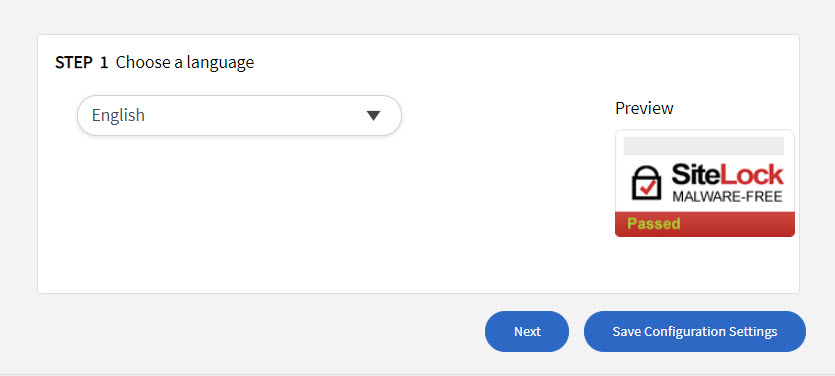
- Next, select which language you want the Trust Seal to display by using the dropdown box.
- Once done with the configuration, click the Next button to continue.
Here you can change the size, color, and style of the Trust Seal.
- Customize the way your Trust Seal looks using the dropdown menus. All options you select will update the example Trust Seal on the right.
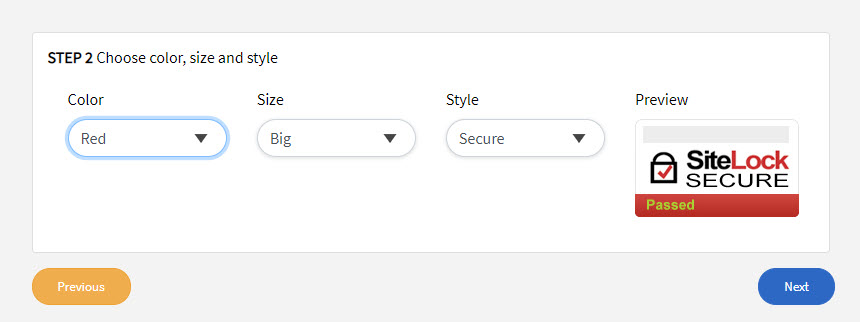
- When you are finished making these changes, click the Next button to continue.
NOTE: The Trust Seal cannot be customized further than the options listed below. We will not accommodate any customization requests:Color – You can select from red or white. This will change the color of the
small bottom portion of the Trust Seal that says Passed.Size – You can select from small, medium, and big. This will change the size of the
whole Trust Seal.Style – You can select from Secure or Malware Free. This will make the Trust Seal say
either “Secure” or “Malware Free”. You must have a premium or higher scanner to be able to display “Secure”. Otherwise, it will always say Malware Free.
- Copy the code below.
<a href="#" onclick="window.open('https://www.sitelock.com/verify.php?site-bigbearslair.com','SiteLock','width=600,height=600,left=160,top=170');"><img class="img-responsive" alt="SiteLock" title="SiteLock" src="//shield.sitelock.com/shield/bigbearslair.com"/></a> - Insert the code into your website.
- Once done, click the Save Configuration Settings button.
Please allow up to 24 hours for your Trust Seal to come online and appear on your website.
If it does not appear, there could be a few reasons why. Please refer to the Trust Seal FAQ article for more details. If you still need assistance after following these instructions, please contact us at 844-589-5311.
Trust Seal FAQs
Why did my Trust Seal suddenly disappear?- This can be due to several reasons:
- Your site has been infected for 72 hours with malware or vulnerabilities. At this point, you do not need to make any changes to your Trust Seal code. Your Trust Seal will re-appear after you have resolved these issues.
- You may have made a change to your site that replaced the code.
- Your domain name might be too long to fit the name/URL text box. Instead, try using a larger Trust Seal in the settings.
I've selected my preferred size/color/style after installation. However, I don't see the changes taking effect. What happened?
- Try clearing your browser's cache and cookies.
Other than the preset option, can SiteLock customize my Trust Seal further?
- The Trust Seal cannot be customized further than the preset option. Also, we do not accommodate any customization requests.
Why does my site says "Malware Free" though I've chosen "Secure" as my style?
- You must have a Premium or higher scanner to be able to display Secure.
Do I need to have a firewall to use the Trust Seal?
- No. Trust Seal pulls data from scanners, so, therefore, it doesn't require a firewall.
Why is my Trust Seal displaying an older date?
- Trust Seal displays the last scan date that came back clean. Please check your scan frequency settings if it is showing an older date.
Back to top.
If you have questions or require further assistance, please contact us at 844-589-5311.
Our friendly security specialists will be more than happy to assist you.