Knowledge Base
WebsiteBuilder: How to Use the Alignment Tool
- Log in to your Domains Dashboard.

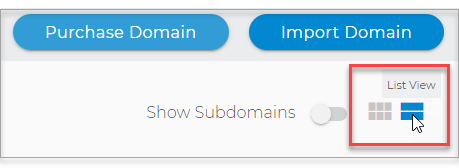
- There are two views in the Domains dashboard - the Card and List views. Click on the view icons to switch to your preferred view.
- Choose the domain you wish to modify.
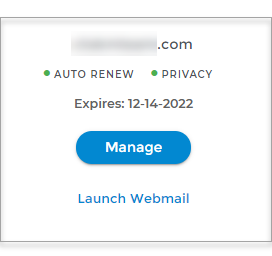
In the Card view, click the domain's Manage button.
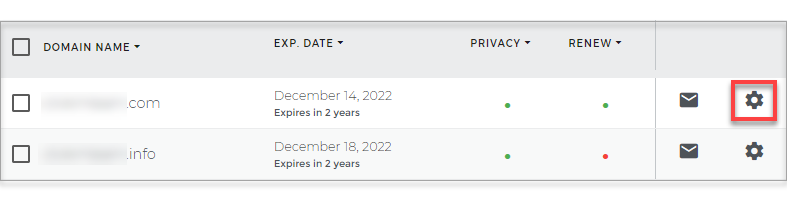
In List view, click the domain or its gear icon on the right-hand side.
-
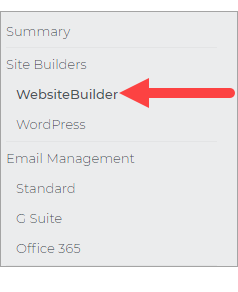
On the left pane, click on WebsiteBuilder, under Site Builders.
-
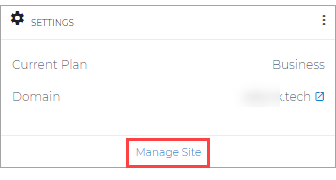
Under Settings, click Manage Site. This action will open your WebsiteBuilder screen on a new tab.
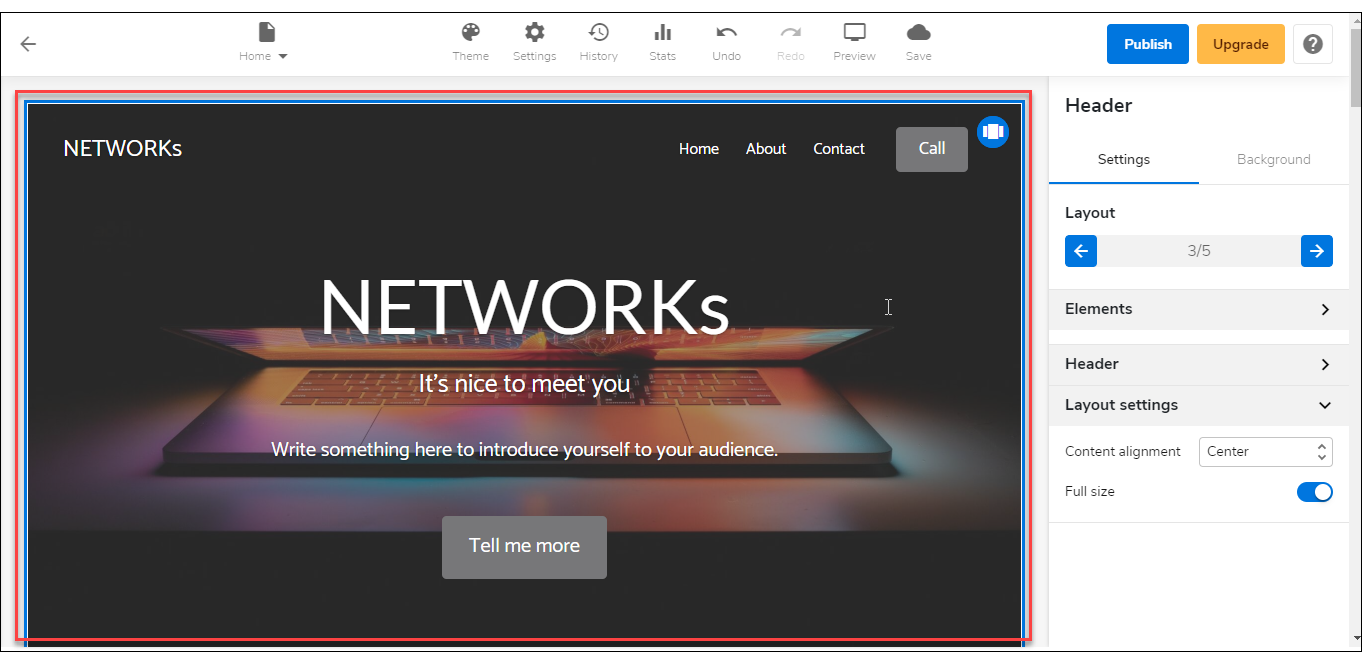
- Click on the section that you want to align.
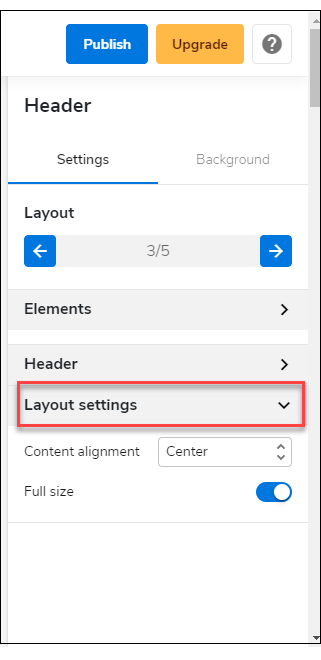
- On the right pane, look for the Layout Settings menu and expand it.
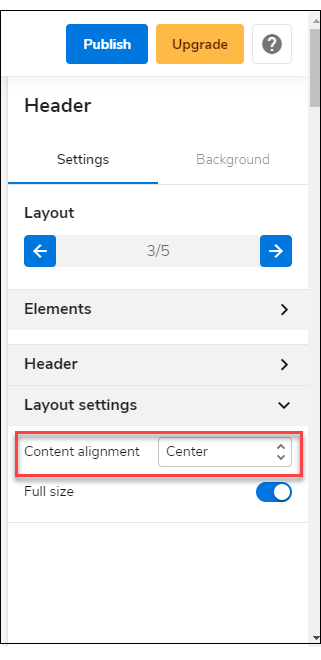
- Use Content Alignment to align your content to either centered, left, or right-aligned.
- You can do the same for the other sections of your site.
- Once you are done, don't forget to save your work by clicking the Save icon. Once saved, click on the Publish button on the upper part of your editor screen. Remember that changes are only visible after you have saved and published your work.
