Knowledge Base
WebsiteBuilder: Page Overview
To get a high-level view of your site, you can use Page Overview to see color and font changes across the site, as well as move sections between pages.
- Log in to your Domains Dashboard.

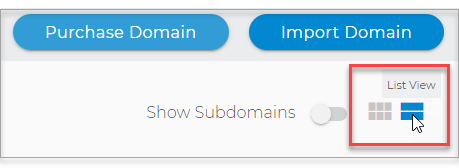
- There are two views in the Domains dashboard - the Card and List views. Click on the view icons to switch to your preferred view.
- Choose the domain you want to edit.
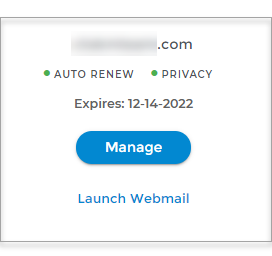
In the Card view, click the domain's Manage button.
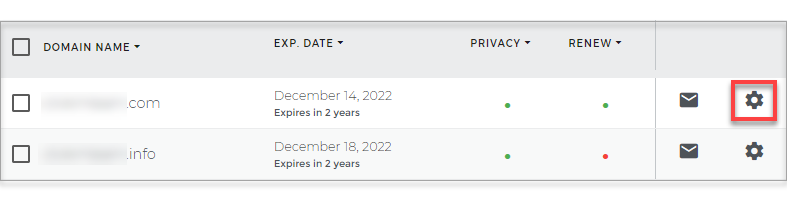
In List view, click the domain or its gear icon on the right-hand side.
-
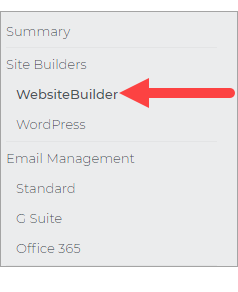
On the left pane, click on WebsiteBuilder, under Site Builders.
-
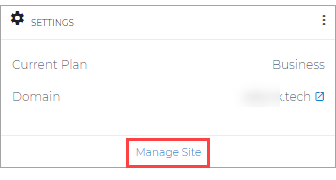
Under Settings, click Manage Site. This action will open your WebsiteBuilder screen on a new tab.
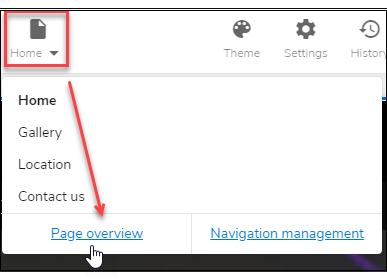
- Click on the Home dropdown menu on the upper left. Then click on the Page Overview link to see the site zoom out. From here, you can now drag and drop sections between pages, as well as change the order of the pages.
Pro Tip: Clicking on the Theme button at the top allows you to see how the whole site will change. For more information, see our article, How to Change Your Theme Design.