Knowledge Base
Categories: WordPress
WordPress: How to Manually Install Using File Manager
This article will cover the steps needed to install WordPress manually.
2. Click on MySQL Database.
3. Click on Add database and fill in the database name, username, password, and confirm password.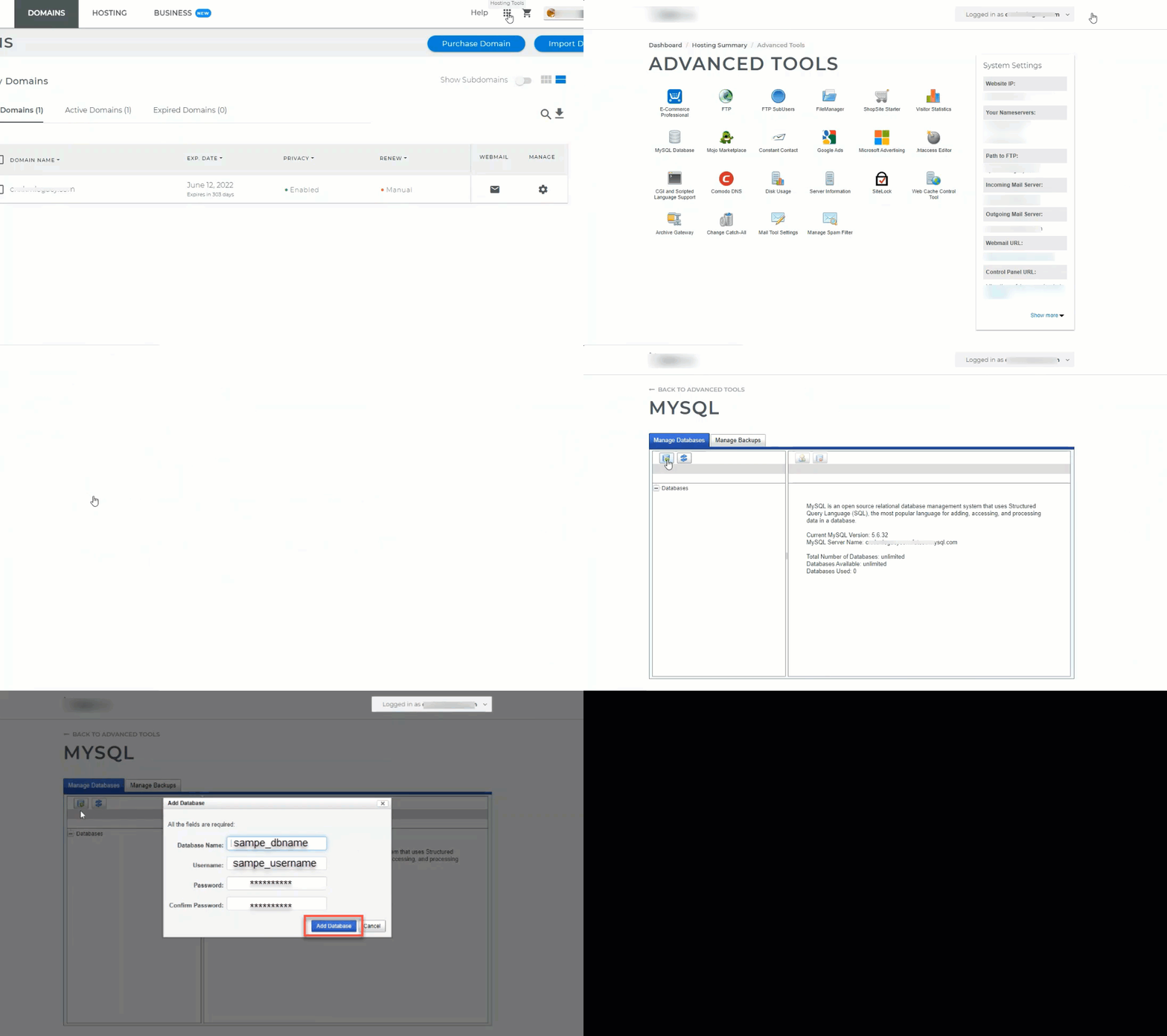
2. Upload the WordPress file.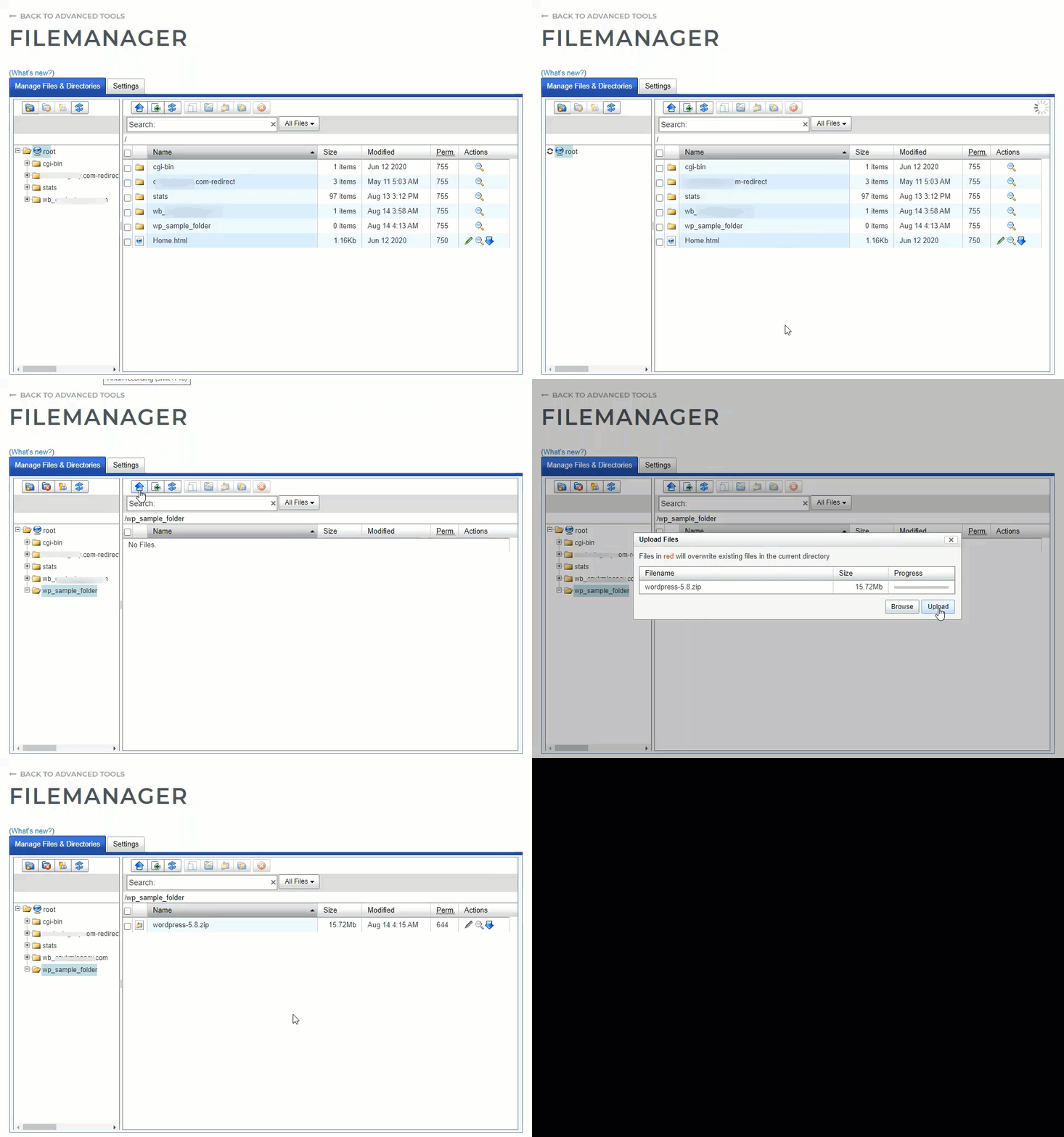
2. Click on Archive Gateway.
3. Select the folder that you've created for your WordPress, then click Extract/Uncompress.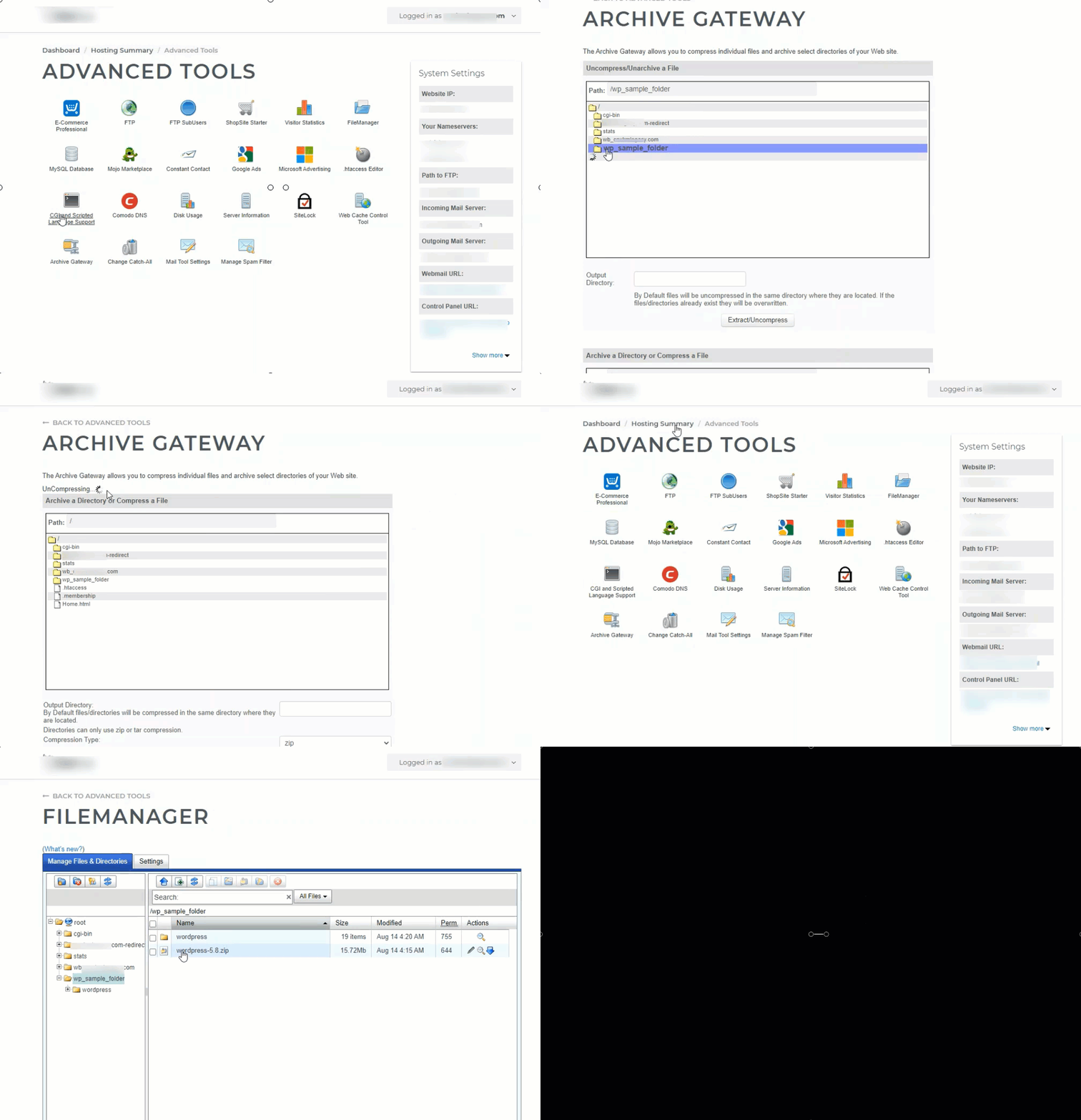
The wp-config-sample.php file can be found in File Manager in the folder where WordPress is installed.
1. Go to Advanced Tools.
2. Click on File Manager.
3. From the left-hand navigation menu in File Manager, click the folder that you created for your WordPress file.
4. In the right-hand panel of the File Manager, locate the wp-config-sample.php file.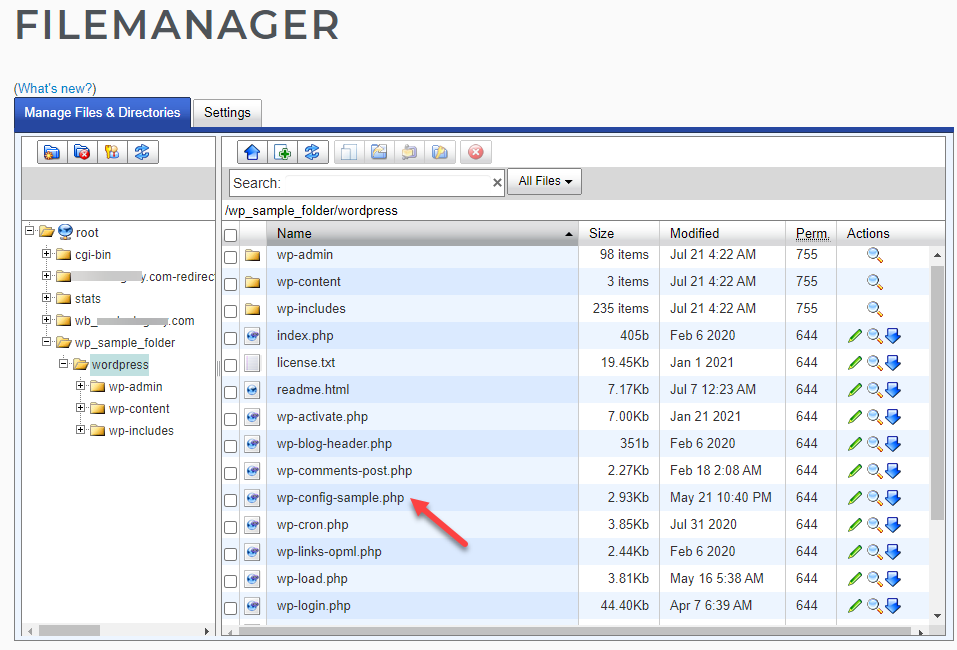 5. Double click the file name to rename.
6. Change the name of the file to wp-config.php, then click the Save button to save the change.
7. Click the green pencil icon on the right side of wp-config.php.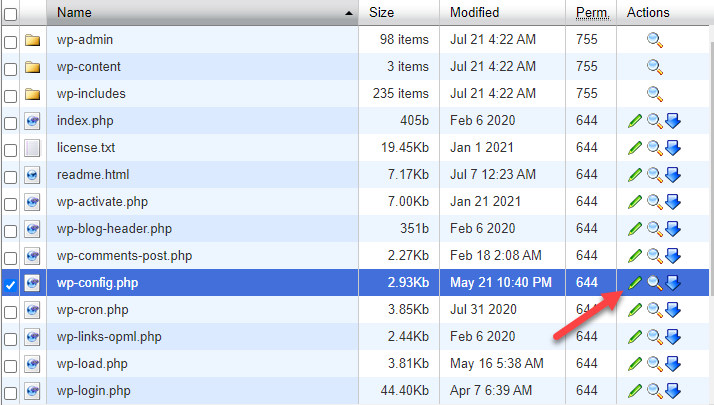 8. A second pop-up box will appear.
9. When the file opens, look for the following information:
10. Once done, click the Save button to save the changes.
If you uploaded WordPress to the domain's root folder, you should be redirected to: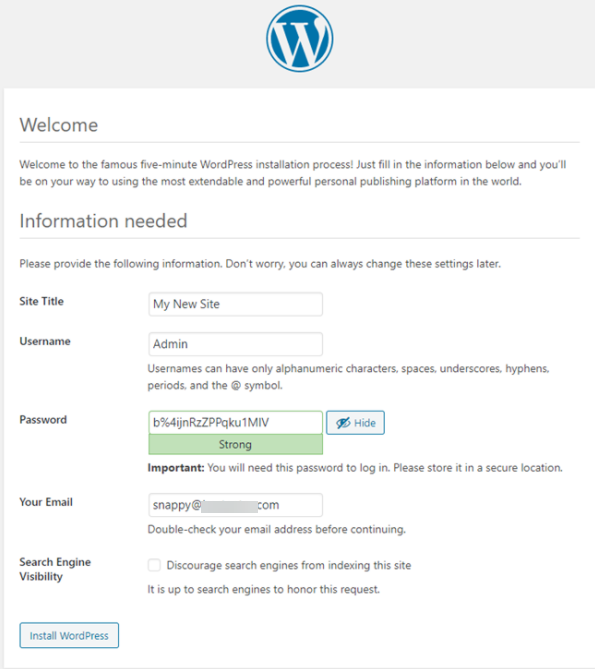
Back to top.
Step 1: Download WordPress
1. Download the WordPress package to your local computer from https://wordpress.org/download/.Step 2. Create MySQL Database and User
1. Go to Advanced Tools.2. Click on MySQL Database.
3. Click on Add database and fill in the database name, username, password, and confirm password.
Tip: Copy the database name, username, password, and your MySQL server name on the notepad because you will need it on step 5.
Step 3: Upload WordPress to Hosting Account.
1. Create a folder on the file manager where you wish to place your WordPress.2. Upload the WordPress file.
Step 4: Extract WordPress Files.
1. Go to Advanced Tools.2. Click on Archive Gateway.
3. Select the folder that you've created for your WordPress, then click Extract/Uncompress.
Step 5: Configure wp-config.php
The wp-config-sample.php file contains the database information and tells the WordPress application from which database to pull data. This step must be completed to ensure the correct database information is associated with the WordPress installation.The wp-config-sample.php file can be found in File Manager in the folder where WordPress is installed.
1. Go to Advanced Tools.
2. Click on File Manager.
3. From the left-hand navigation menu in File Manager, click the folder that you created for your WordPress file.
4. In the right-hand panel of the File Manager, locate the wp-config-sample.php file.
6. Change the name of the file to wp-config.php, then click the Save button to save the change.
7. Click the green pencil icon on the right side of wp-config.php.
9. When the file opens, look for the following information:
define('DB_NAME', 'database_name_here');

	/** MySQL database username */
	define('DB_USER', 'username_here');

	/** MySQL database password */
	define('DB_PASSWORD', 'password_here');

     /** MySQL hostname */
     define('DB_HOST', 'localhost_here');
- Replace database_name_here with the name of the database you created (above in Step 2: Create MySQL Database and User ⤴).
- Replace username_here with the username of the database you created.
- Replace password_here with the password of the database that you created.
- Replace localhost_here with the MySQL server name found on the right-hand panel of MySQL.
Note: Make sure there are no spaces before or after your database name, username, and password.
10. Once done, click the Save button to save the changes.
Step 6: Run the Installation.
Open a new browser window and enter your domain to run the installation script. Depending on where you installed the script, you will be automatically redirected to either of the following URLs:If you uploaded WordPress to the domain's root folder, you should be redirected to:
https://example.com/wp-admin/install.php
If you uploaded WordPress to a subfolder of your domain's directory, then the URL will be this format:
https://example.com/yoursubfolder/wp-admin/install.php
Be sure to replace example.com in the example above with your actual domain name.
Step 7: Complete the installation.
1. Once you access your correct WordPress URL in a browser, you will see a WordPress setup page prompting you to select your preferred language. Select your preferred language and click the Continue button.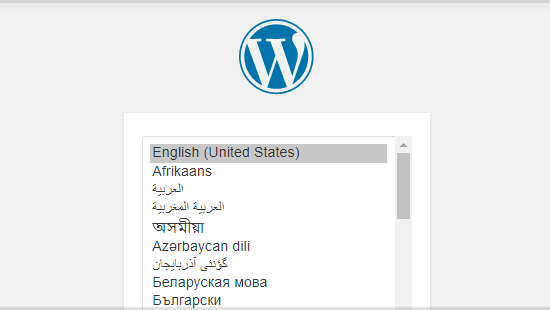
- Site Title - This can be changed at a later time.
- Username - This is the admin username for the site. We highly recommend using something other than 'admin' since using it can pose a security risk.
- Password- A strong password will be automatically generated for you, but you can choose your own. The strength indicator will let you know how secure your password is.
- Your Email- Login information will be sent to this email address, so make sure it is an email address you have access to.
- Search Engine Visibility- If you want your website to show up in search engine results, leave this unchecked. If you do not want your site indexed, then you can check this box.
Back to top.