Knowledge Base
Categories: WordPress
WordPress Troubleshooting: How to Disable Plugins Using File Manager
You may experience a 500 error or white screen of death with your WordPress website, which several issues may cause. Additionally, In this situation, you may not be able to access your WordPress Dashboard. One of the reasons might be a faulty plugin. This article illustrates the troubleshooting steps on disabling plugins if the 500 error is left justified and you cannot access your WordPress Dashboard.
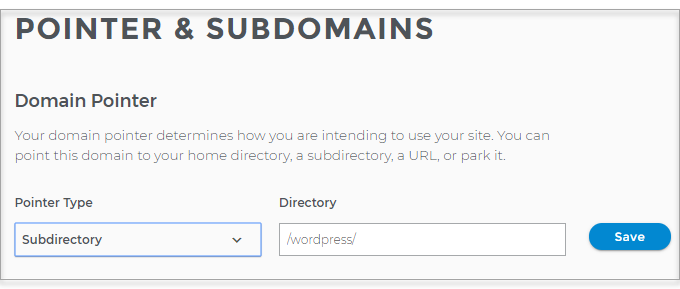
.Check where the domain is pointed
- Log in to your Domains Dashboard.

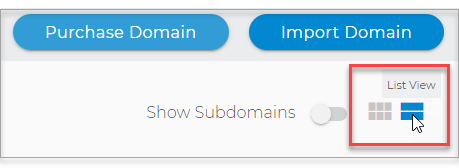
- There are two views in the Domains dashboard - the Card and List views. Click on the view icons to switch to your preferred view.
- Choose the domain you wish to modify.
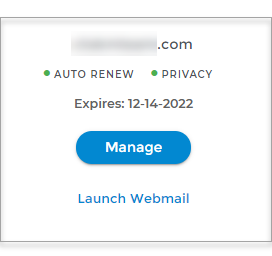
In the Card view, click the domain's Manage button.
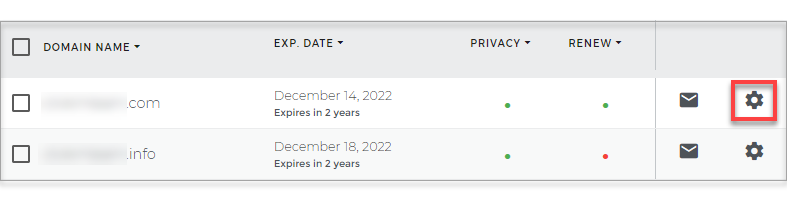
In List view, click the domain or its gear icon on the right-hand side.
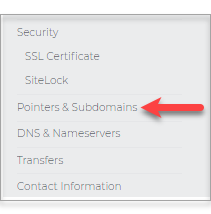
- On the left sidebar, click on Pointers & Subdomains.
Disable the plugin using File Manager
Important: We recommend that you only resort to this method if you are unable to access your WordPress Dashboard. Also, some plugins may create folders and files outside of the typical plugins directory, which may cause issues if you ever try to reinstall the plugin at a later time.
- Log in to your Domains Dashboard.
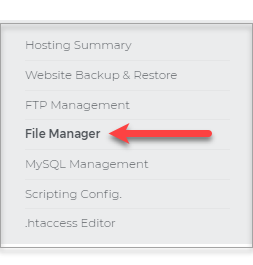
- In the left panel, click on File Manager.
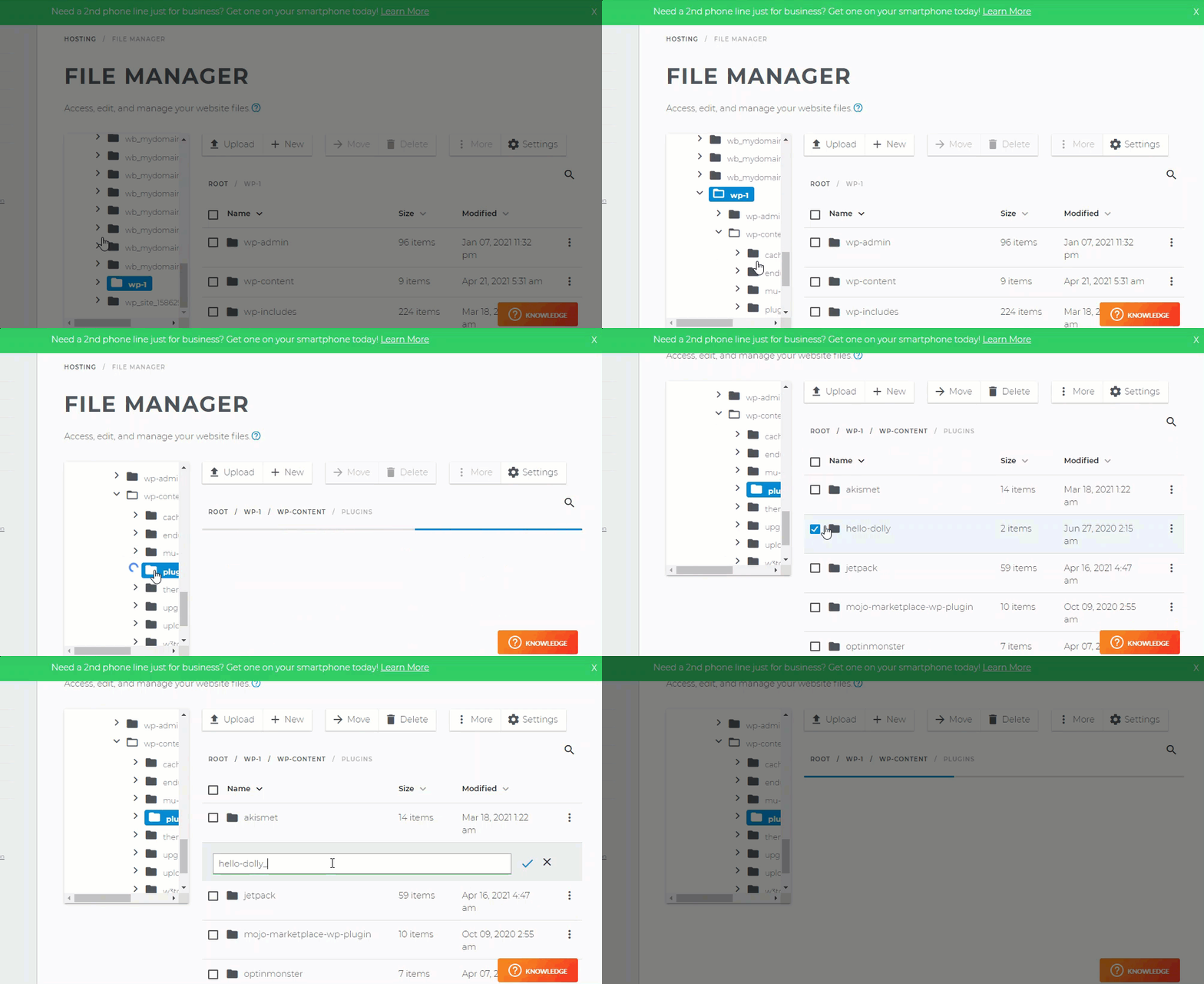
- Locate the directory where your WordPress site is installed.
- Locate the /wp-content/plugins directory folder.
- Rename the plugin that you want to disable temporarily.
- Clear the cache (or CTRL+F5) and check the site.
Note: If your website is working again, it is one of the plugins breaking your site. If you rename a plugin and decide that the plugin is NOT causing the issue, you must activate any plugins you have renamed within the WordPress Dashboard after you regain access to it. If you do not reactivate them, they will not function. You can reactivate plugins and do some of your own troubleshooting within your WordPress Dashboard.
Related Articles
- WordPress: How to Uninstall a Plugin
- WordPress: How to Install a Plugin
- WP Essential: How to Enable WordPress Cache Plugins
- WordPress: Plugins - Video
- WordPress: Themes and Plugins