Knowledge Base
File Management: Navigating File Manager
File Manager
- Log in to your account Hosting Dashboard.

- In the left panel, click on File Manager.
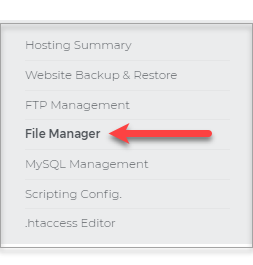
- Access, edit, and manage all of your website files.
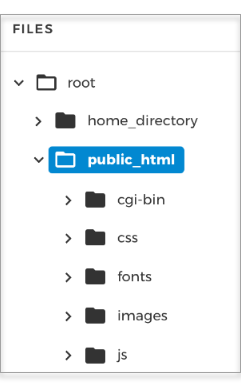
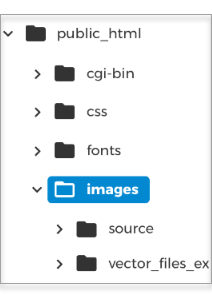
- Open directories by clicking the arrow.
- Create new files or folders by clicking on the +New button.
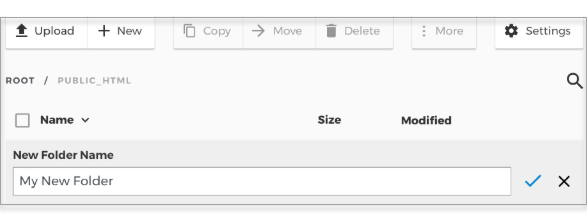
- Name the file or folder and select the check when you are done.

- Upload new files with the Upload button.
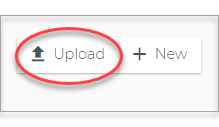
- Select the items you wish to upload and click on Open.

- You will see the upload progress as shown in this image.
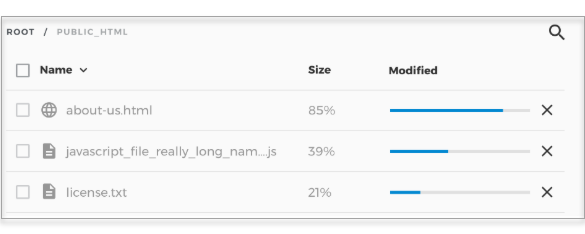
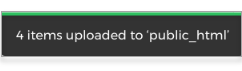
- A popup box will inform you of the progress.
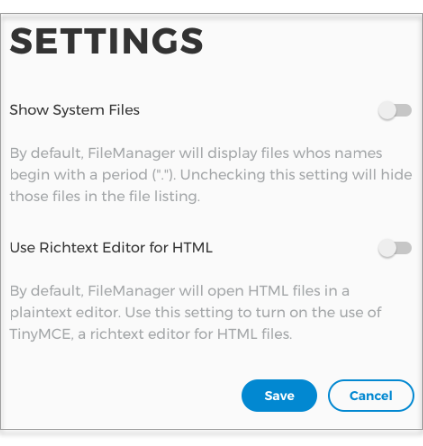
- Settings allow you to Show System Files or toggle the Richtext HTML Editor.
- Type search items into the search field.
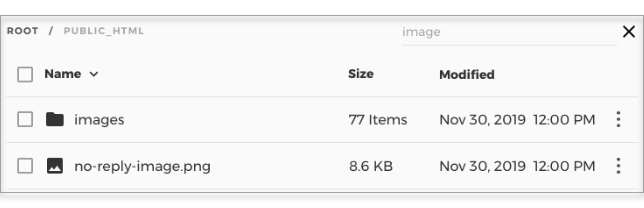
- In this case, the results for the term "image."
- Select individual items or everything by checking the selection box.
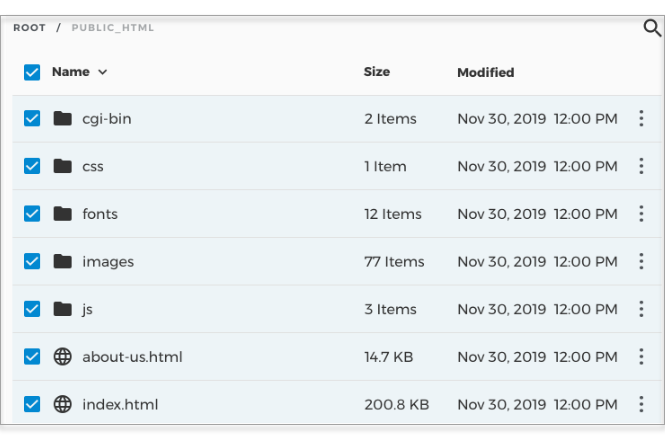
- Click the 3 dots, the More menu for additional options.

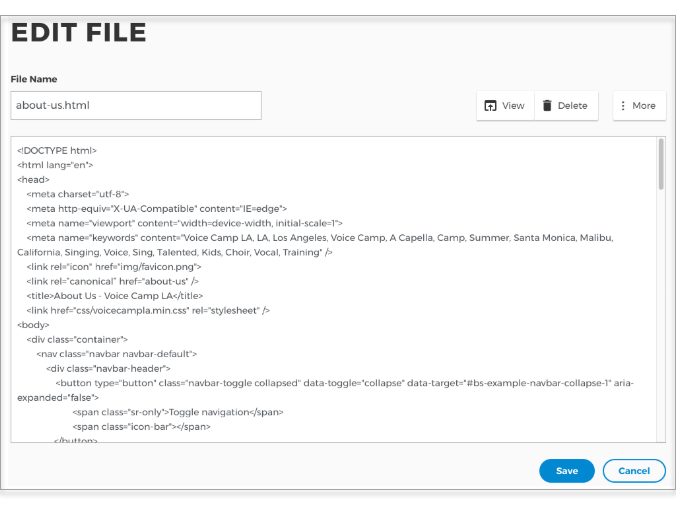
- Edit, on the options menu, opens the raw file for editing.
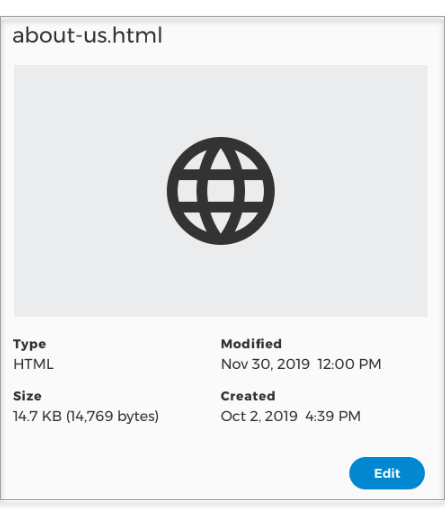
- View details
- Rename a file or folder, check when you are done.

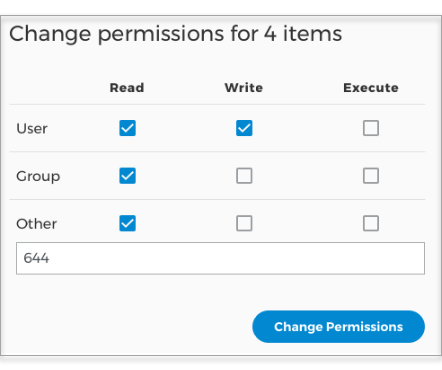
- Change permissions on a file or folder.